How RegoIQ processes shipments (revision)
Updated
Updated 5 November 2026.
RegoIQ turns the shipping documents that arrive by email into registered jobs in your TMS. It reads the bill of lading or arrival notice, builds the job, waits for a person to check it, sends it to CargoWise or Expedient, and reports back what the TMS said. This article follows a shipment from email to confirmed job.
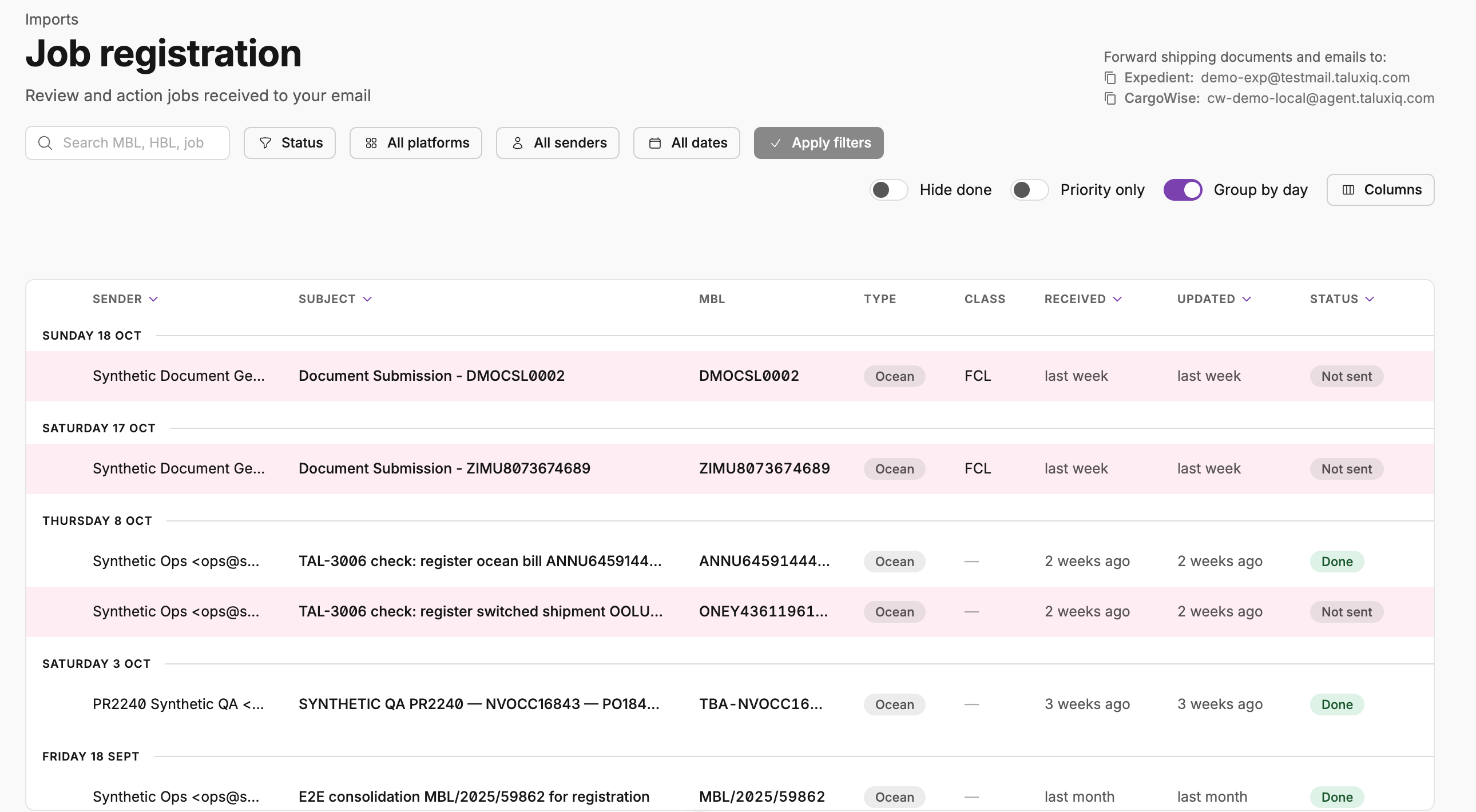
How documents arrive
Shipping emails reach RegoIQ in two ways: forwarded to the intake address shown on Job registration under Forward shipping documents and emails to:, or read from a connected Outlook mailbox when FreightIQ classes them as a registration. Either way the email appears in Job registration under Imports, with its sender, subject, master bill, mode, class and the documents it carried.
From email to job
- Reading. The email shows as Pending then Processing while its attachments are classified and read.
- Waiting for a bill. A shipment needs a master bill, house bill, air waybill label or arrival notice before it can be created. An email with only supporting documents waits as Awaiting Bill / ARN; when the bill arrives on a later email, the shipment is created and those documents attach to it by themselves. If your organisation has switched on Create a job from a shipper's letter of instruction or booking request, a letter of instruction or booking request opens the job straight away, and the bill joins it when it arrives; see Open a job from a shipper's letter of instruction or booking request.
- Building the job. Parties are matched to your address book and your org rules apply (see Setting up your first rules). The job appears as Not sent, ready for review.
- Review and send. Open the job, check the fields against the documents shown beside them, and select Send to CargoWise or Send to Expedient. See Reviewing jobs on the dashboard.
- Confirmation. The job shows Sent then Awaiting confirmation until the TMS answers, then Done. CargoWise usually answers within minutes; Expedient can take longer.
What the statuses mean
| Status | Meaning |
|---|---|
| Not sent | Job ready for review. |
| New info | New information received, review and re-send. |
| Awaiting confirmation | Sent to your TMS, awaiting confirmation. |
| Confirmation overdue | Confirmation overdue, check your TMS or retry. |
| Done | Confirmed by your TMS, no further action needed. |
| Needs review | Required details missing, add them before sending to your TMS. |
| Send failed | Failed to send to your TMS, check and retry. |
| Update Available | A later email carries changes for an existing shipment, review before applying. |
| Attach Docs | A later email carries documents ready to attach to a shipment. |
| Arrival Notice | An arrival notice is ready to review. |
| AP Invoices | The email held supplier invoices, routed to accounts payable. |
Confirmation counts as overdue after three minutes for CargoWise and 45 minutes for Expedient. A row is treated as priority when it has sat unsent for three days (ocean) or 24 hours (air), or when its confirmation is overdue; switch on Priority only to see just those, and Hide done to drop confirmed jobs from the list.
After the job is in the TMS
Documents that arrive later for a job the TMS already holds are filed against it as eDocs, and a later email with changed details shows as New info for you to review and send again. See How eDocs work and Handling missing documents.