How eDocs work
Updated
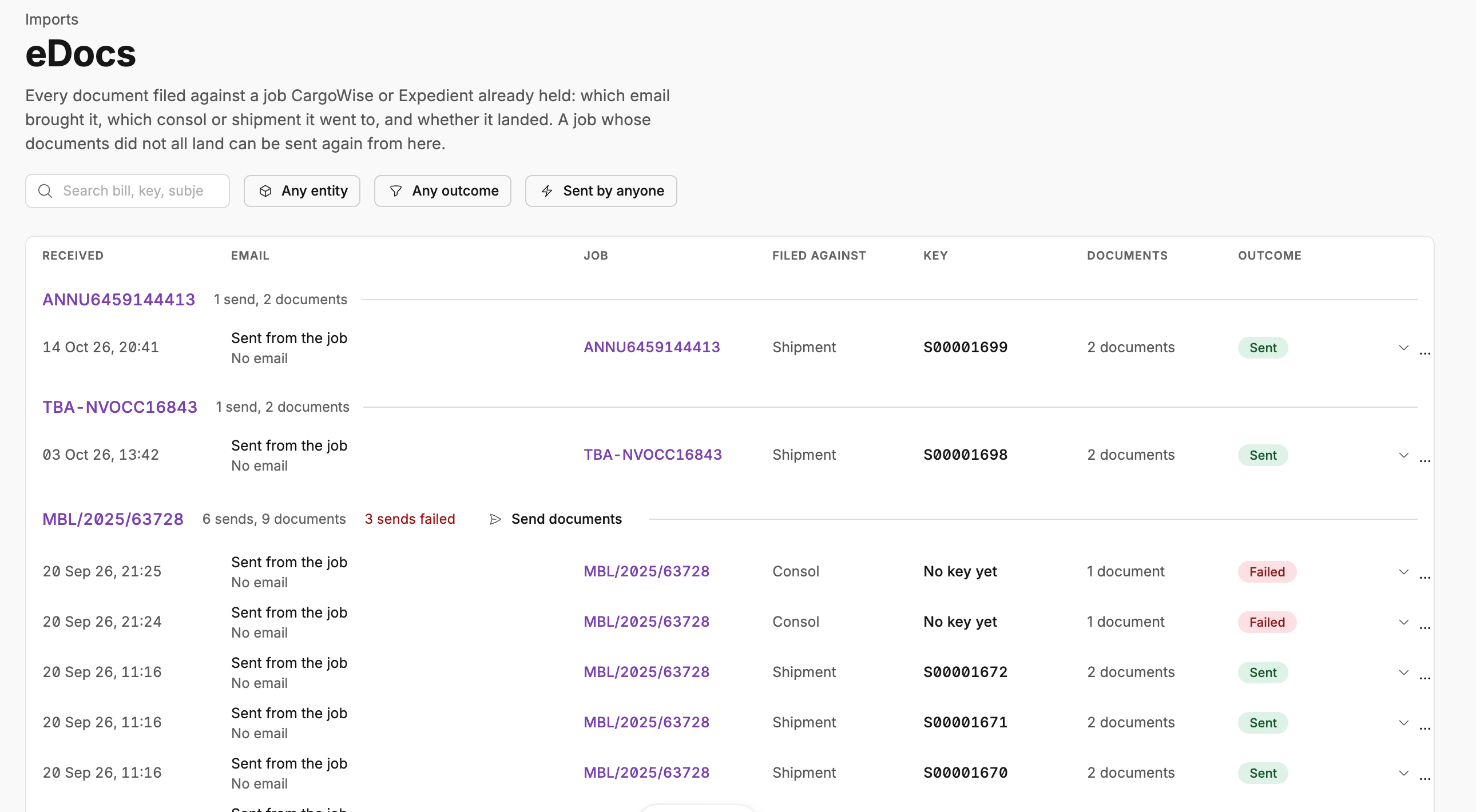
An eDoc is a document filed against a job your TMS already holds: the packing list that arrives after the bill, the arrival notice, a corrected invoice. RegoIQ files these for you and the eDocs page under Imports records every one: which email brought it, which consol or shipment it went to, and whether it landed.
When a document is filed automatically
A document is sent to the TMS by itself when the email it arrived on is matched to a job that has already been sent, and the TMS has given that job a key. For CargoWise that means the job shows Sent, Done or New info and holds a CargoWise key for its consol, shipment or declaration. A manifest always files at consol level; every other document files on the shipment it belongs to.
Documents on a job that has not been sent yet go with the job when you send it. They are not eDocs; nothing appears on this page for them until the job is in the TMS.
Reading the page
Rows are grouped by job, newest first, with Received, Email, Job, Filed against (consol, shipment, declaration or job), Key, Documents and Outcome. Filter by entity, by outcome, or by whether the send was automatic or started by an operator. A row labelled Job fields with the outcome Updated records a field update rather than a document.
| Outcome | Meaning |
|---|---|
| Queued, Sending | On its way. |
| Sent | The TMS has the documents. |
| Partly sent | Some documents landed and some did not. |
| Not sent | Nothing was sent, for a reason shown on the row. |
| Failed | The TMS refused the send. |
The reasons behind Not sent tell you what to do next:
- The job has not been sent yet. Send the job; its documents go with it.
- CargoWise has not returned a key for this job yet. Wait for confirmation, then the documents send.
- Every document on the job was already filed. Nothing to do.
- This consol or shipment has not reached CargoWise yet. Send the job again to include it.
Send documents again
On a CargoWise job whose documents failed, were skipped or only partly landed, select Send documents on the job's group. The same button is on the job page under More job actions. You see how many sent and how many did not; try again for the rest. On Expedient, use Send all documents again on the job page, which sends every document once more.
Which document types are filed
Every document type your TMS knows can be filed. The names, codes and whether a type is visible to your customers are managed on Document types under Settings; see Rename and hide document types.