Register your first shipment from a pre-alert
Updated
This article follows one shipment from an agent's pre-alert email to a registered job in CargoWise or Expedient. Work through it with a real pre-alert the first time. The example uses master bill COSU1911533973.
You need the Job registration area. If Job registration is not in your sidebar, see Get started after your invitation.
Prefer to watch first? The video guides page has an 8 minute walkthrough of the same steps in CargoWise.
1. Get the pre-alert into TaluxIQ
- Open Job registration under Imports.
- Find your organisation's intake address under Forward shipping documents and emails to: and select it to copy it.
- Forward the pre-alert to that address with its attachments: the master bill, the house bill, the commercial invoice and the packing list. If you have the files and not the email, select Upload documents.
The email appears in the list as Pending, then Processing while TaluxIQ reads the documents. When the job is ready the status changes to Not sent.
A status of Awaiting Bill / ARN means the email held no bill of lading, air waybill or arrival notice. Forward the bill and the documents join up by themselves.
2. Find the shipment by its bill number
- In the search box, type the master bill or house bill number from the pre-alert.
- Check the MBL and HBL columns match your documents.
Searching switches Hide done off, so a shipment that was already sent still shows.
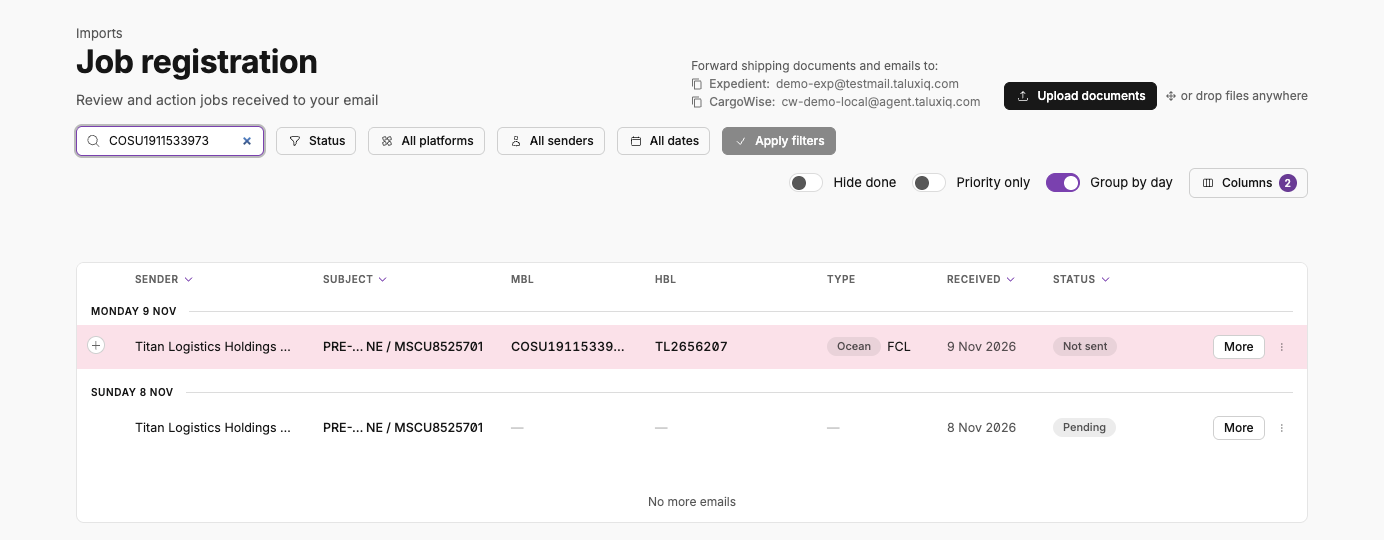
If nothing shows after a few minutes, work through A job did not appear from an email.
3. Check the consignee against the bill
Select the row to open the job. The documents are on the left, the job fields are in the middle, and the document you select opens on the right so you can read it while you check the fields.
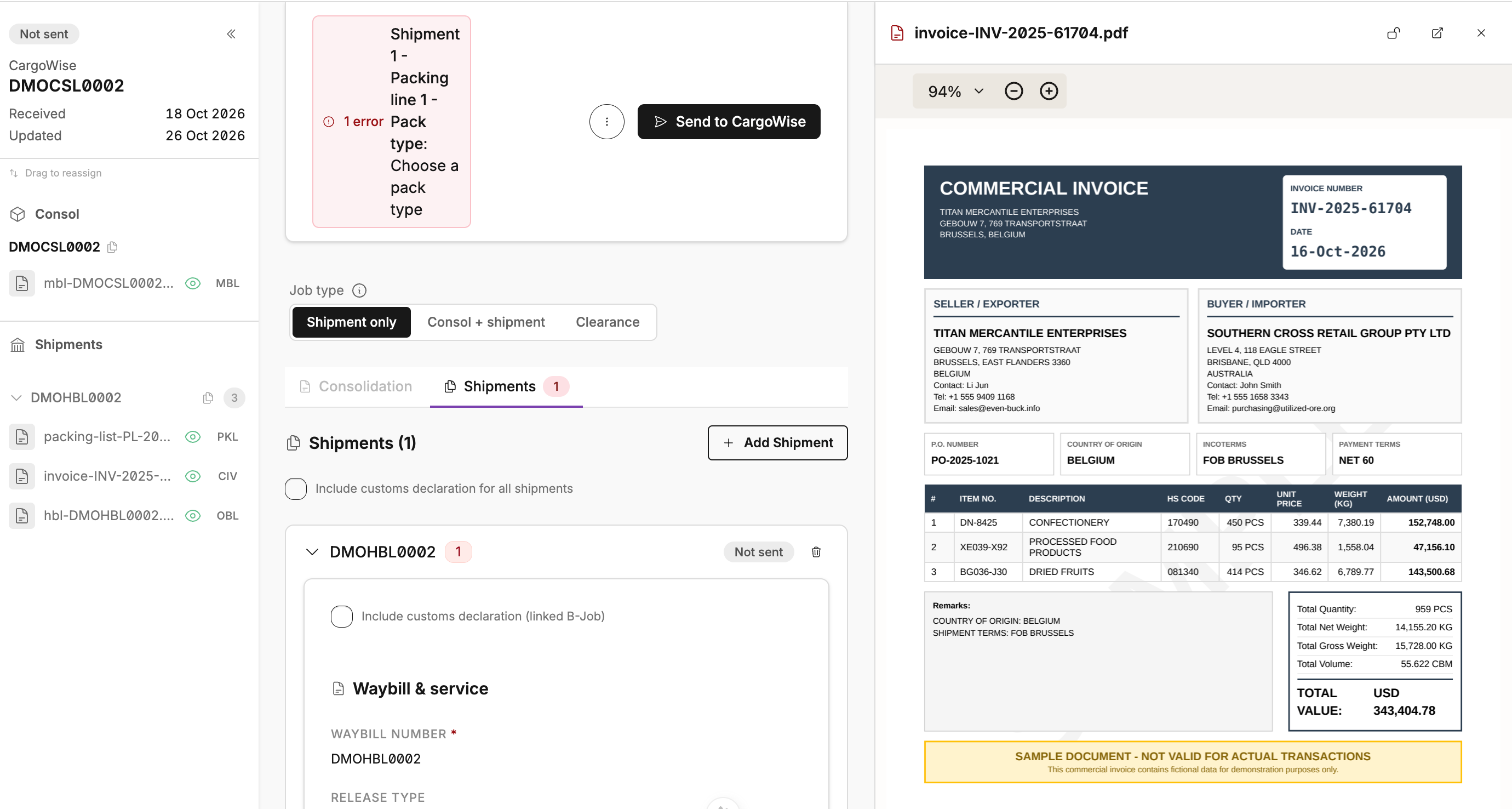
- In the left column, select the house bill so it opens on the right.
- Find the consignee on the job. On a CargoWise job, open Shipments and look for the consignee row under Parties. On an Expedient job, look for Consignee on the house bill.
- Compare the name and address with the consignee box on the bill.
If the consignee is wrong:
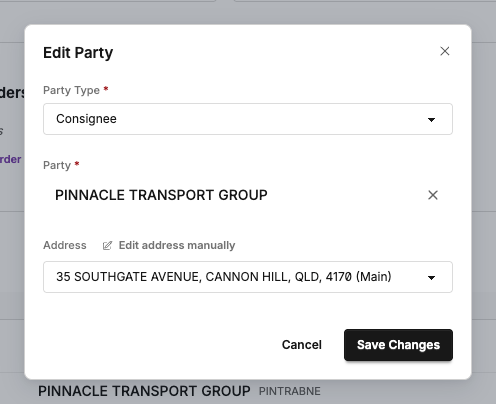
- On a CargoWise job, select the pencil on the consignee row to open Edit Party, search for the right party, choose its address and select Save Changes. On an Expedient job, search in the Consignee field and pick the right party.
- Watch the top of the job. It shows Saved once your correction is stored.
The job itself has no Save button. Every change saves as you make it. If a save fails you see Couldn't save your changes with Retry, and your edits stay on the page. TaluxIQ also learns from corrections: see How corrections become rules.
4. Clear what blocks the send
If required details are missing, the job lists them. Fill each one in from the documents.
Some problems are not yours to fix alone:
| You see | Who acts |
|---|---|
| The right party is not in the search | Your organisation admin keeps the address book. Ask them to add the party, then pick it on the job. |
| A port resolves to the wrong code | Your organisation admin keeps port codes. See Pin a port to the right code. |
| Possible duplicate detected | You decide. The job is locked until you choose to merge with the existing record or register a new one. See Reviewing jobs on the dashboard. |
| A document is missing | See Handling missing documents. |
| Anything else you cannot resolve | Email support@taluxiq.com with the bill number. |
5. Send the job
- Select Send to CargoWise or Send to Expedient.
- Wait for the message that the job was sent.
6. Confirm it reached your TMS
Sent and confirmed are not the same thing. Go back to Job registration, search the bill number again and read the status.
| TMS | Status after you send | What it means |
|---|---|---|
| CargoWise | Sent, then Done | Sent means the job has left TaluxIQ and CargoWise has not answered yet. Done means CargoWise has returned its job number. |
| Expedient | Done | The job shows Done as soon as it is sent. TaluxIQ does not wait for Expedient to answer, so check the job in Expedient the first few times. |
| Either | Send failed | The TMS refused the job. Open the job, read the reason at the top, fix what it names and send again. |
To list every job that was sent and has not been confirmed back, open the Status filter and choose Awaiting confirmation.
Then check the TMS itself:
- In CargoWise, search for the house bill number and open the shipment.
- In Expedient, look under Manifest EDI, Consol or Job Holding.
If a confirmation is slow, check the TMS before you send again. A second send of a job the TMS already holds can create a duplicate.