Handle wholesaler consols in Expedient
Updated
If you run consols for other forwarders, one master bill carries many house bills, and they reach you on different emails from different senders. With wholesaler handling switched on, TaluxIQ files each pre-alert against the Expedient job or consol that already holds it and files co-loader manifests where they belong. This article covers the setup, what TaluxIQ does with each kind of email, and the screens you use.
Set up
Talux switches wholesaler handling on for your workspace. Before it does, work through these with your TaluxIQ contact:
- Ask for wholesaler handling. Talux turns it on for your workspace. Co-loader manifests then appears under Imports. Awaiting consol appears too, but stays empty for Expedient (see below).
- Connect Expedient. TaluxIQ can only find a consol that already exists in Expedient once your Expedient integration is sending job registrations back to Talux. See Set up your Expedient integration.
- Check your company name. TaluxIQ recognises a co-loader's parent bill consigned to you by the company name Talux holds for you. If co-loaders print your name differently, tell your TaluxIQ contact.
Co-loader manifests go to Expedient as MAN. There is nothing else to set up in Expedient.
What TaluxIQ does with each email
A pre-alert with a master bill
TaluxIQ places it by the master bill number. If no job in TaluxIQ holds that master bill but a consol in Expedient does, TaluxIQ creates the job under that consol, so sending it updates the consol instead of making a duplicate. The consol's master bill, vessel, voyage, ports, carrier and departure and arrival dates then come from Expedient, not the document. If nothing holds it, TaluxIQ creates a new job.
House bills with no master bill
TaluxIQ looks for a job with the same master bill number, then the same container, then a consol in Expedient with that master bill or container. A match counts only when exactly one job or consol fits; otherwise TaluxIQ creates a new job rather than guess. When it does match, the email adds or updates only its own house bills. The consol's master bill, vessel, ports and dates, and the other house bills, stay as they are.
House bills under a parent bill
When a co-loader sends house bills under its own parent bill before the master bill exists, TaluxIQ registers them as a new job straight away. The job's master bill number is TBA- followed by the parent bill number, for example TBA-HBL95070. Nothing is held back. When the co-loader later sends the master bill, TaluxIQ registers it as a separate job; the TBA- job is not updated. Check both jobs before you send either.
A co-loader manifest on its own
A manifest a co-loader sends for its cargo in your consol never creates a job. TaluxIQ finds the job by master bill, then container, and files the manifest against the house bill consigned to that co-loader, or against the consol when no house bill is. If the manifest disagrees with your job, the email shows Manifest mismatch. See Resolve a manifest mismatch.
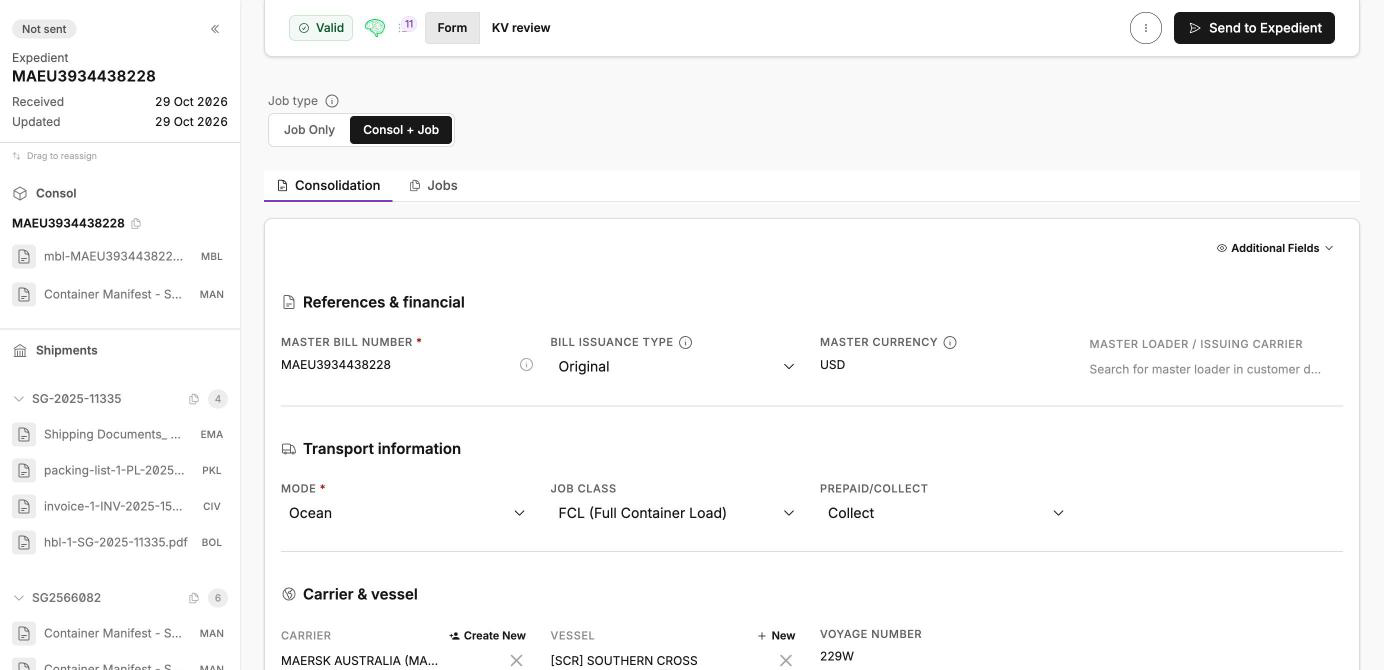
If Expedient already holds the job, the manifest is sent to it as a document straight away. Expedient documents can take up to 15 minutes to arrive. If Expedient does not hold the job yet, the manifest waits on the job.
Sending to Expedient
A new job waits as Not sent until you select Send to Expedient. When a later email updates a job Expedient already has, the job shows New info: review it and send again. TaluxIQ never re-sends job details on its own; only new documents go automatically, to a job Expedient already holds.
Resolve a manifest mismatch
Co-loader manifests under Imports lists every manifest a co-loader sent, with its issuing company, ocean bill, job and outcome. The CargoWise shipment column does not apply to Expedient and shows a dash.
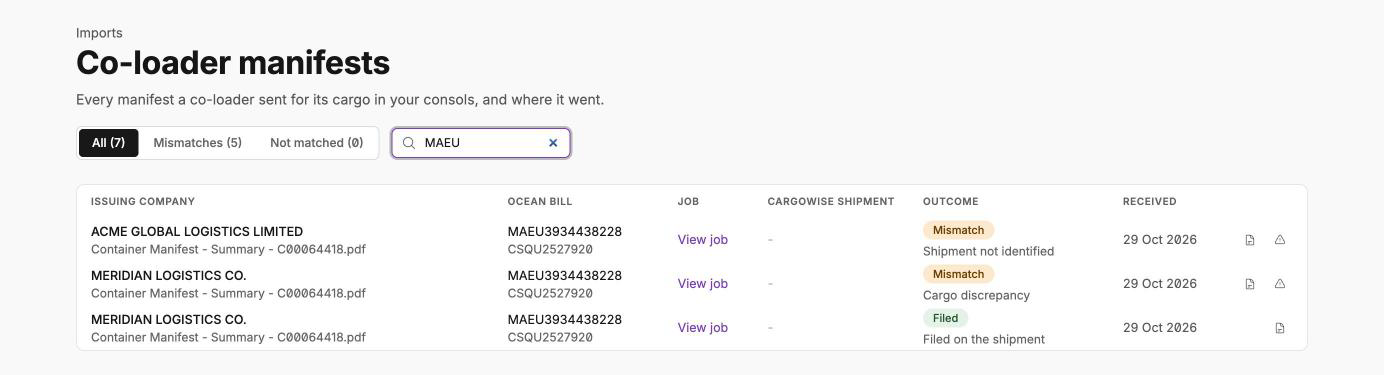
- Select the Mismatches view. Each row is Wrong identifiers, Shipment not identified or Cargo discrepancy.
- Select View details. Differences to raise with the issuer shows each field on the manifest and on your job. For Shipment not identified, the window explains the manifest was filed on the consol instead.
- Select Copy body and copy the subject to email the issuing company for a corrected manifest.
- When the corrected manifest has arrived, or you have fixed the shipment, select Mark resolved. Reopen brings it back.
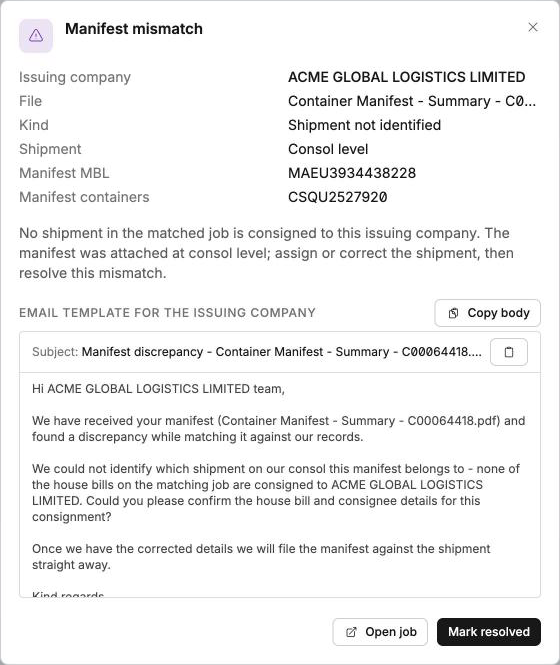
A manifest with Wrong identifiers is held back from the job until the corrected one arrives. The other kinds are filed and recorded.
See what happened to an email
On Job registration, select More on the email, then the Timeline tab. Wholesaler steps start Wholesaler routing:, for example matched existing job, matched TMS consol, unmatched documents or manifest matched to job. An email with a mismatch also shows Review mismatch on its Details tab.
Troubleshooting
- A pre-alert made a new job instead of joining the consol. On the email's Timeline, Wholesaler routing: unmatched documents means no job or Expedient consol had that master bill or container, or more than one did. Check the numbers on the existing job match the document.
- The vessel, ports or dates on a new job differ from the document. The job was created under a consol already in Expedient, which takes priority. Correct it in Expedient if the document is right.
- A job's master bill starts with TBA-. It came from a parent bill before the master bill arrived. When the master bill comes, it registers as its own job, so look for that job before sending the TBA- one.
- A manifest is on the job but not in Expedient. Expedient did not hold the job when the manifest arrived. Send the job, or wait up to 15 minutes if it was just sent.
- You do not see Co-loader manifests. Ask your TaluxIQ contact to check wholesaler handling is on for your workspace.