Set up Expedient to receive supplier invoices
Updated
TaluxIQ posts supplier invoices to Expedient as XML creditor invoices, sent by email. Expedient receives them at one address that belongs to your Expedient tenancy. To set this up you give that address to Talux support, then set up each creditor in Expedient to accept XML invoices.
Before you start
- Your Expedient integration is set up and your Expedient customers are imported into the TaluxIQ address book. See Set up your Expedient integration.
- You can open and update the Customer Masterfile in Expedient.
Find your receiving address
The address is the same for every creditor, so you only need to find it once.
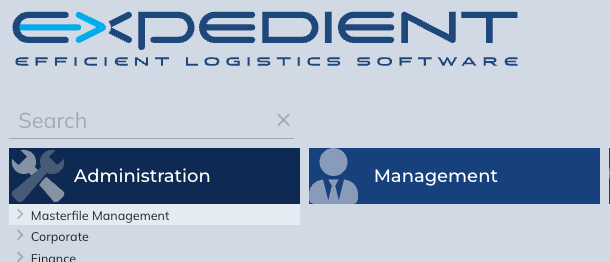
- In Expedient, under Administration, open Masterfile Management and then the Customer Masterfile.
- Find one of your creditors and select Update.
- Open the Creditor tab.
- Set Receive Creditors Invoice EDI? to Yes. The EDI Creditors Invoices section appears.
- Set File Format to XML File Format.
- Copy the address shown beside Advise the Creditor to send the Invoice file to the following address.
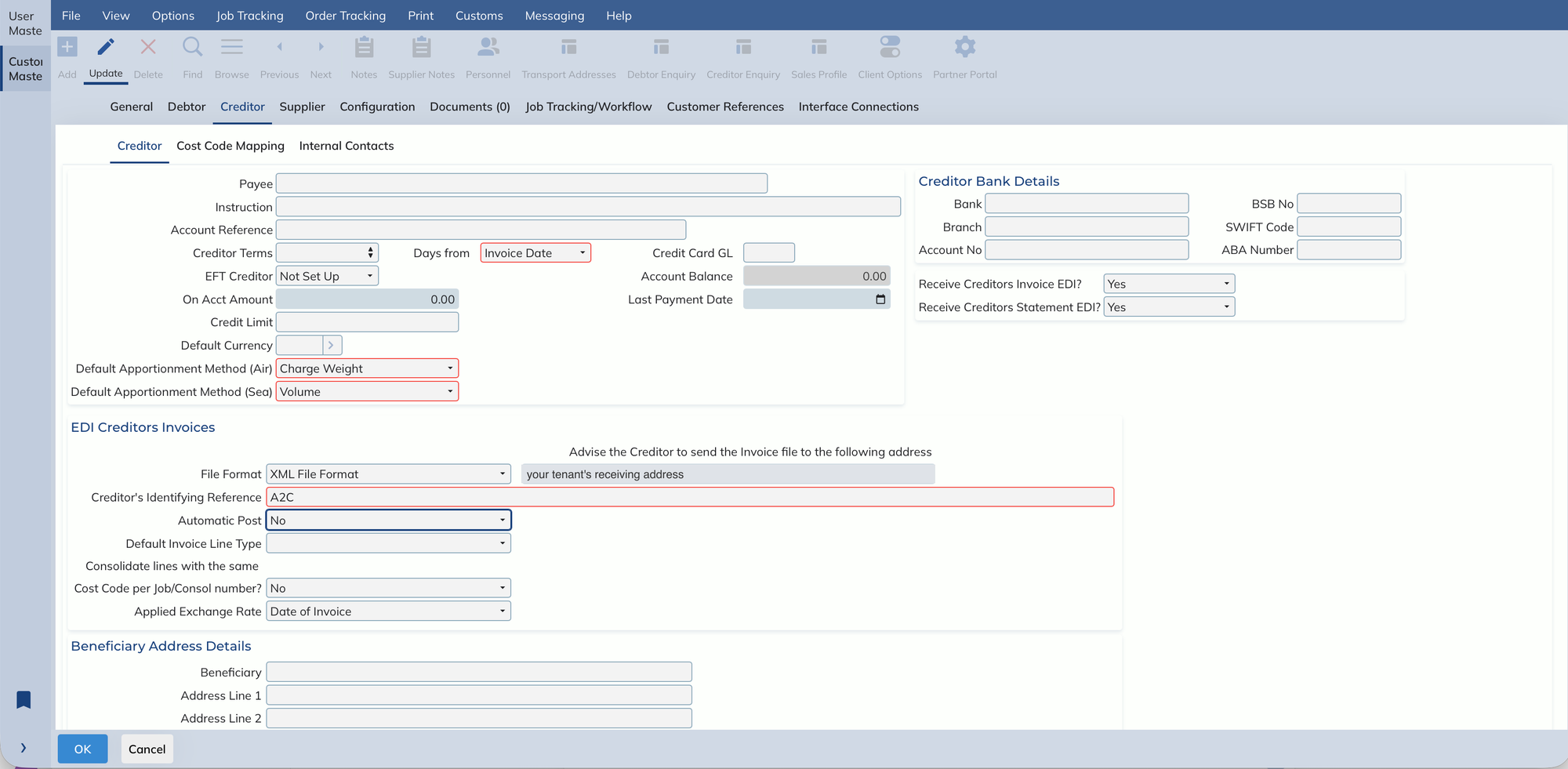
You now have the address. If no address appears beside File Format, Expedient has not activated creditor invoice EDI on your tenancy. Ask Expedient to activate it, then check again.
Send the address to Talux support
Only Talux support can enter the address in TaluxIQ. Send it to Talux support with the name of your TaluxIQ account. Support tells you when it is in place.
Until it is in place, TaluxIQ refuses to post supplier invoices to Expedient.
Set up each creditor
Expedient accepts an invoice only from a supplier that is in the Customer Masterfile, set up as a creditor and set up to receive XML invoices. Do this for every supplier whose invoices you post from TaluxIQ.
- Check the supplier is in the Customer Masterfile and is set up as a creditor. If it is not, add it and set it up as a creditor first.
- In the Customer Masterfile, find the creditor and select Update.
- On the Creditor tab, set Receive Creditors Invoice EDI? to Yes.
- Under EDI Creditors Invoices, set File Format to XML File Format.
- In Creditor's Identifying Reference, enter the creditor's Expedient org code.
- Select OK.

TaluxIQ identifies the creditor by its Expedient org code, taken from the supplier in the TaluxIQ address book. The address book stores a copy of the customer / supplier org codes and details.
Check that the supplier in TaluxIQ carries the same org code you entered as the Creditor's Identifying Reference.
If you added the creditor to Expedient after your last import, import your Expedient customers into TaluxIQ again with Import from Expedient (CSV) in Address book, so the supplier and its org code are in TaluxIQ.
Load your Expedient charge codes
Each invoice line goes to Expedient with the cost code it was given in TaluxIQ, so the cost codes in TaluxIQ must be your Expedient charge codes.
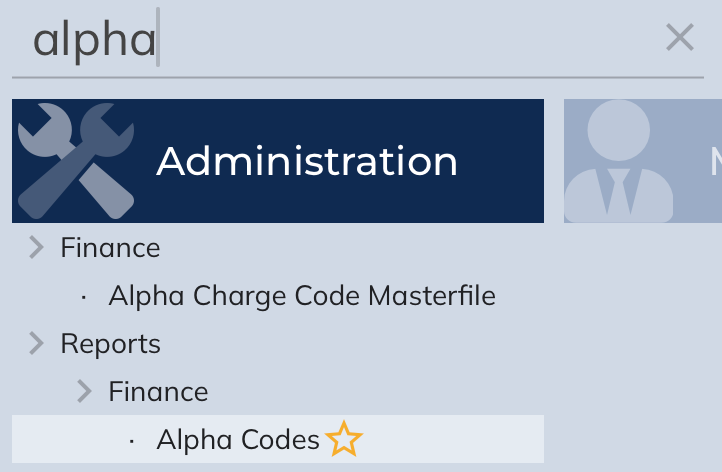
- In Expedient, under Administration, open Reports, then Finance, then Alpha Codes. Typing alpha in the menu search finds it.
- Set Report Format to CSV File and select OK.
- On the Print Menu, tick Send? for a recipient whose Transmission Method is E-mail, then select E-mail. Save the CSV attachment from the email you receive.
- Check the file's first row. TaluxIQ needs a code column headed Code, Cost Code, CostCode, CostCodeAlpha or Alpha Code, and a description column headed Description, Desc or Name. If the headers are different, rename them to Code and Description.
- In TaluxIQ, open AP Configuration and the Cost Codes tab.
- Select Upload File and choose the CSV.
The upload adds new codes, updates existing ones and leaves codes not in the file alone. Any rows it skips are listed with the reason. When Expedient gains a new charge code, export and upload the list again. For the optional Active and GST % columns, and for coding rules, see Set up cost codes, coding rules and tax codes.
Check it works
- In TaluxIQ, open a supplier invoice for a creditor you have set up and select Post. If you run both CargoWise and Expedient, choose Expedient.
- Check that the invoice arrives in Expedient against the right creditor and job.
Resolve common problems
| Problem | What to do |
|---|---|
| Post is refused because the Expedient AP import email is not configured | Talux does not yet have your receiving address. Send it to Talux support. |
| No address shows beside File Format in Expedient | Ask Expedient to activate creditor invoice EDI on your tenancy. |
| Post is refused and names a missing supplier code, invoice number or job | Fix what the message names on the invoice. The supplier needs an Expedient code in the address book. |
| Post is refused because the supplier has no Expedient code | The supplier is not in your TaluxIQ address book with its Expedient org code. Set it up as a creditor in Expedient, then import your Expedient customers again. |
| The upload says the header row must contain a Code or Description column | Rename the code column to Code and the description column to Description, then upload again. |
| The invoice is posted but does not appear in Expedient | Check that the supplier is set up as a creditor in the Customer Masterfile, that it has Receive Creditors Invoice EDI? set to Yes and File Format set to XML File Format, and that its Creditor's Identifying Reference is its Expedient org code, matching the supplier's code in TaluxIQ. |