Set up cost codes, coding rules and tax codes
Updated
AP Configuration holds the three lists accounts payable runs on: the cost codes an invoice line can be coded to, the coding rules that pick a code automatically, and the CargoWise tax codes each line posts with. Set the cost codes up first; coding cannot run without them.
You need the Accounts payable role with management rights. The page sits in the Accounts Payable group.
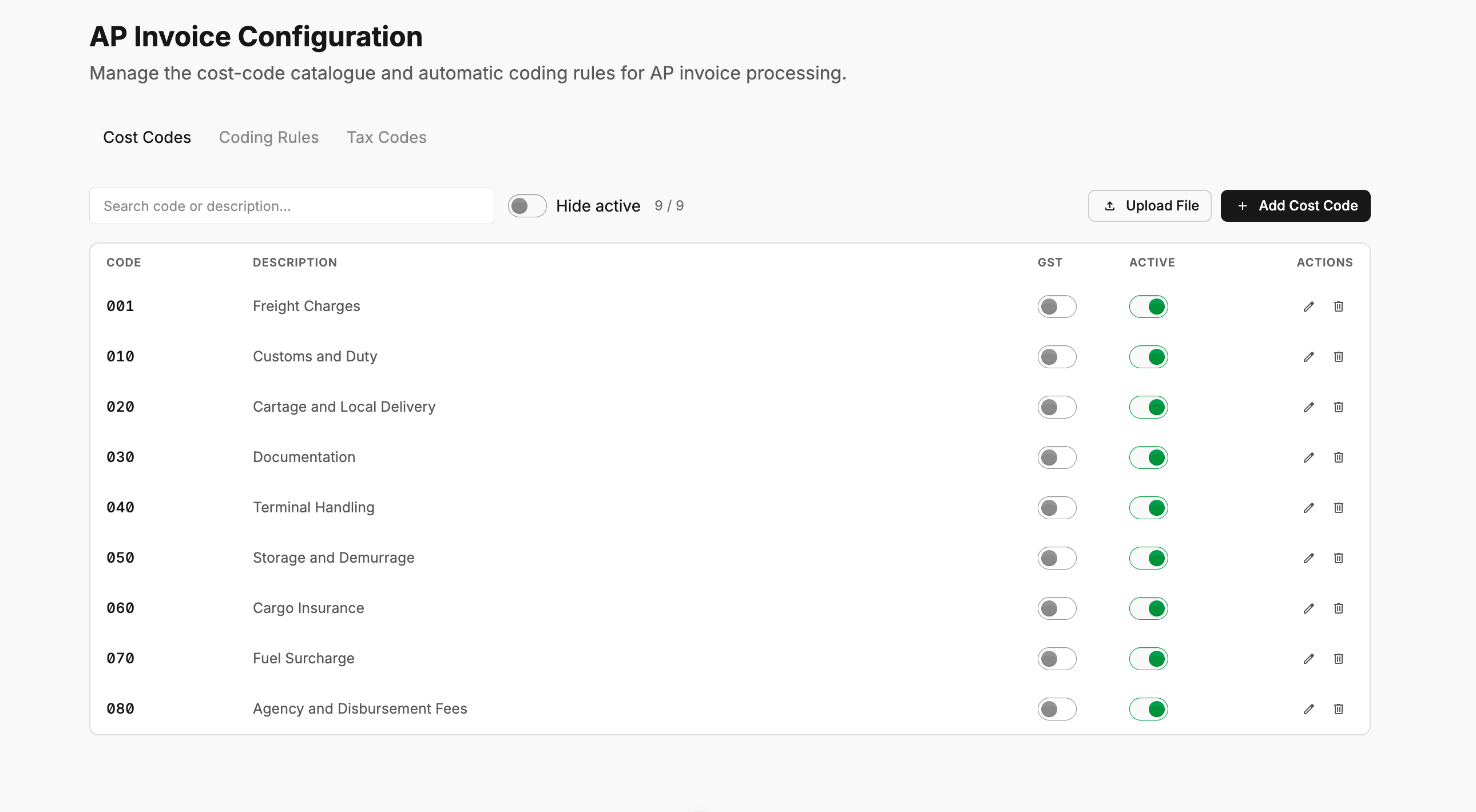
Cost codes
Each cost code has a Code (for example WHARF), a Description, whether it attracts GST, and whether it is Active. Only active codes are offered on invoice lines.
- To load a list, select Upload File. Use an Excel (.xlsx) or CSV file whose first row holds the headers Code and Description (required), and optionally Active (Y/N, Yes/No, TRUE/FALSE, 1/0) and GST % (any value above 0 sets GST on). The upload updates existing codes, adds new ones and leaves codes not in the file alone. Skipped rows are listed with the reason.
- To add one by hand, select Add Cost Code and fill in the code and description.
- When editing a code you can also set Charge type, which the tax check uses to tell freight from brokerage and customs paid on the client's behalf.
Deleting a cost code affects future coding only; invoice lines that already carry it keep their value.
Coding rules
A coding rule gives a line a cost code without anyone typing it. Rules are checked in order and the first match wins; lines no rule matches are coded from the catalogue by TaluxIQ and left for you to confirm.
- Keyword: the line description contains the value, for example Fuel Surcharge.
- Supplier: the supplier name matches exactly.
- Regex pattern: the description matches a pattern.
Most rules are made for you: when you change a cost code on an invoice line and answer Yes, save rule, a keyword rule for that description is saved. Select Add Rule to create one yourself with a Match type, Match value and Cost code. Switching a rule off keeps it for later; deleting it does not touch lines already coded.
Tax codes
When you post to CargoWise, each line goes with the CargoWise tax code that matches its tax. The list comes from CargoWise itself: export the tax code list from CargoWise's tax code screen and select Upload File. The first row must hold the headers Code and Rate; Description, Tax Type, Auxiliary Type and Extra Tax Rate are read as CargoWise lists them. Codes in the file are added or updated and the rest left alone.
The Posted for column tells you which lines each code is used for, such as tax at a rate, zero-rated lines or exempt lines. A line that no code covers waits for you and the post is refused with the reason, so keep the list complete. There is no add or edit for tax codes: upload the list again when it changes in CargoWise.