How supplier invoices are coded and posted
Updated
Accounts payable in TaluxIQ reads each creditor invoice, codes its lines to your cost codes, links each line to the job it belongs to, and posts it into your TMS as a payable. This article follows one invoice from arrival to posting.
You need the Accounts payable role. The Accounts Payable group appears in the sidebar once Talux has switched the module on for your organisation.
How an invoice arrives
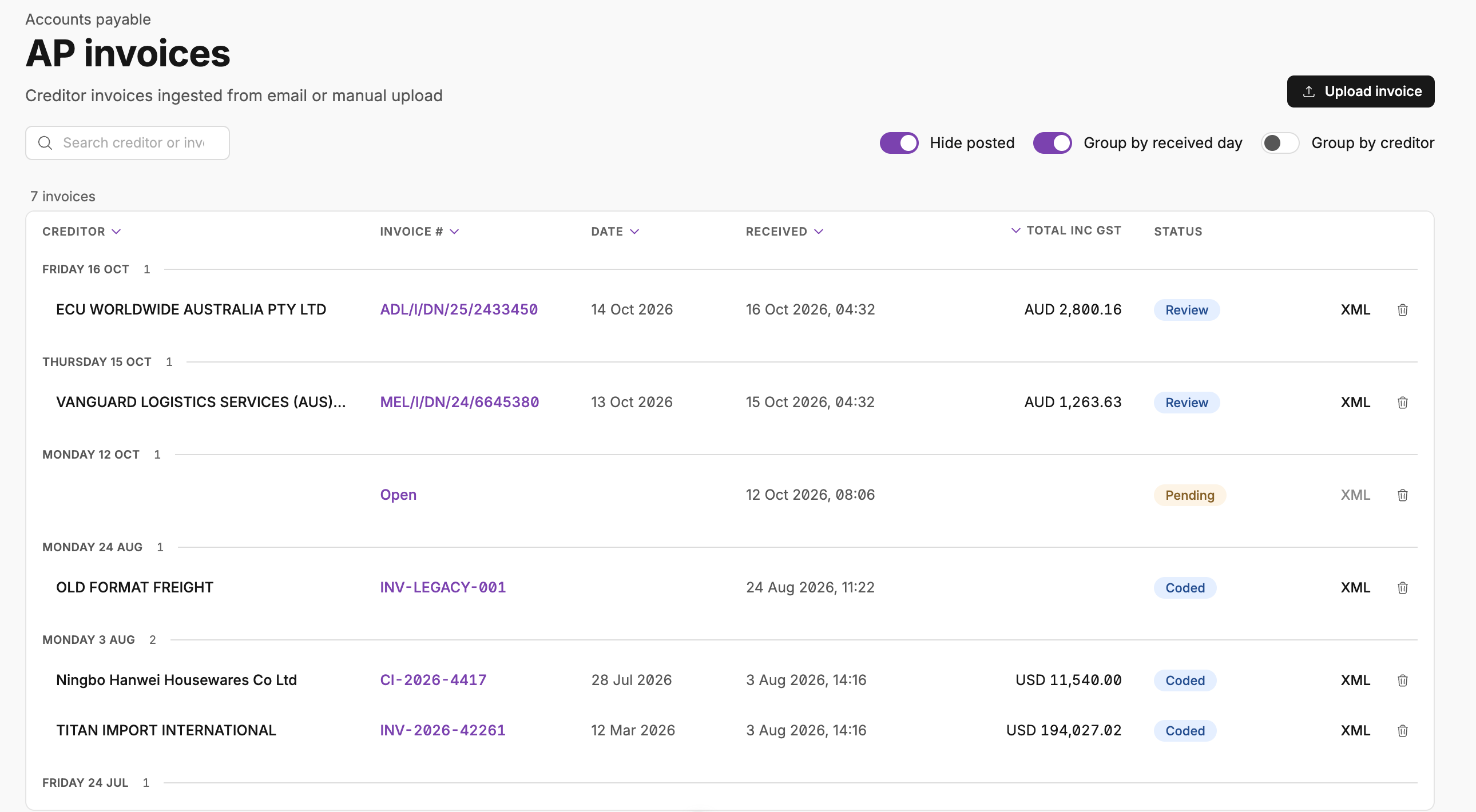
- By email. When an email reaches your connected inbox with a creditor invoice, supplier invoice or agent invoice attached, TaluxIQ reads it and adds it to AP invoices. Statements go to Creditor statements instead.
- By upload. On AP invoices select Upload invoice. A PDF can be up to 50 MB; a spreadsheet (.xlsx, .xlsm, .xls, .csv) or Word document (.docx) up to 4.5 MB. A file you have uploaded before is refused with a link to the existing invoice.
An invoice with the same supplier and invoice number as one already in TaluxIQ is not added twice.
What TaluxIQ reads
From the header: the supplier, invoice number, invoice and due dates, currency, totals, the tax printed on the invoice and any customer reference. From each line: the description, the amount before tax, whether tax was charged, and any job reference it can find: a job or shipment number, a house or master bill, a container or a booking reference.
The supplier is matched to your address book. The job reference on each line is looked up in your TaluxIQ jobs first and then in what your TMS has sent, trying consol, shipment, master bill and house bill in that order. A reference that fits more than one job is left for you to choose, with the candidates offered on the line.
What the status means
| Status | Meaning |
|---|---|
| Pending, Extracting | Still being read. You cannot post yet. |
| Extracted | Read, with coding about to run. |
| Coded | Every line has been given a cost code where a rule or the catalogue allowed. Ready for your review. |
| Coding failed | Coding did not finish. Open the invoice and code the lines yourself. |
| Posting | On its way to the TMS. |
| Posted | In the TMS as a payable. |
| Partial posted | An invoice split across several jobs posted for some jobs and not others. Check the posting history and post again for the failed ones. |
| Already in CargoWise | CargoWise already holds this invoice, waiting to be allocated. Approve it in CargoWise under Payables, Transaction Pending Allocation. Sending it again will not help. |
| Failed | The TMS refused it. The reason is shown on the invoice. |
Switch on Hide posted to see only what still needs you. Group by received day and Group by creditor change the order of the list.
Review an invoice
- Select the invoice. The file shows beside the fields; Hide file gives the fields the full width.
- In Header, check Supplier, Invoice number, the dates and Currency. Tick Credit note for a credit. Changes save as you type. Choosing a supplier also fills its TMS code.
- In Cost allocations, give each line a Cost code and check the amount and tax. A line still needing a job shows Required in the job column; pick one of the suggested jobs, or type it and use Use this job on all lines to copy it down. Add or delete lines as the invoice needs.
- When you change a cost code, TaluxIQ offers to remember it: Save as coding rule? Choose Yes, save rule and future lines with that description are coded the same way.
- Check Tax. It compares the tax printed on the invoice with what the lines add up to and says how the invoice was read.
Post it to your TMS
Select Post. If you run both CargoWise and Expedient, choose which. Posting runs in the background and the status updates when the TMS answers.
Post is refused until the invoice has a supplier with a TMS code, an invoice number, and a job on every line, and the toast names what is missing.
- CargoWise receives one payable transaction with a line per cost allocation, and the invoice file is attached as an eDoc the first time. Each line carries the tax code that matches its tax, from the list you uploaded under AP Configuration; a line no code covers is refused with the reason.
- Expedient receives a creditor invoice message at the import address Expedient activated for your tenancy.