Create TaluxIQ access in CargoWise
Updated
A guide for your CargoWise administrator
Please create a dedicated CargoWise login for your named TaluxIQ contact. This lets us review your setup and agree the configuration and testing plan for your integration. Review the access scope below, then complete the handover checks.
Create the dedicated staff record
Open staff administration and create a new staff record. Use the person and email address in your TaluxIQ onboarding email. Do not reuse a colleague’s account or copy an administrator’s access without reviewing it.
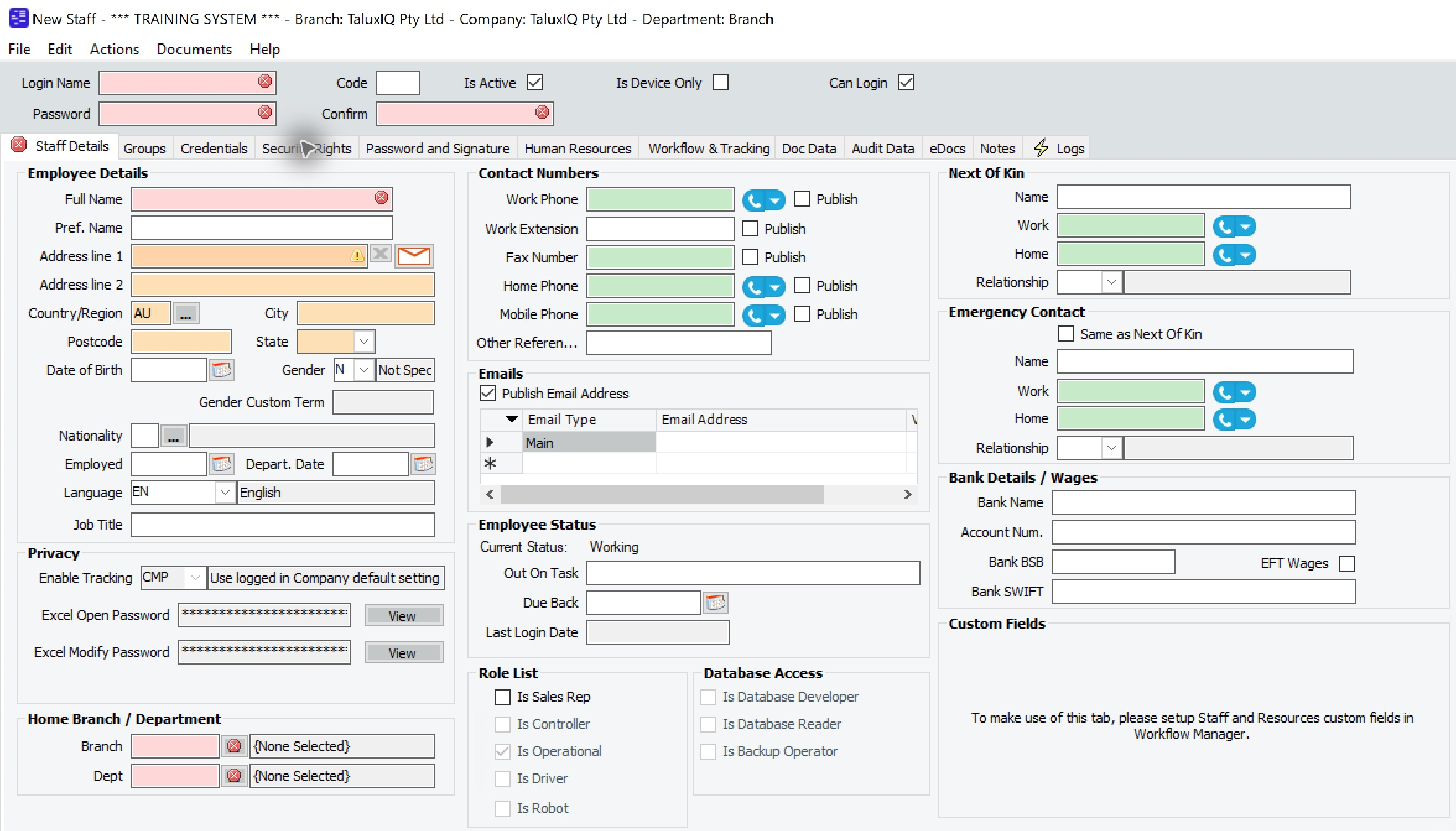
- Login Name and Code: choose a unique login and staff code using your normal naming convention.
- Full Name and Emails: use the named TaluxIQ contact and the email address supplied in the onboarding request.
- Home Branch and Department: select the agreed starting branch and department. Confirm the permitted companies and branches separately.
- Is Active and Can Login: your administrator should confirm the account is enabled for the intended login method. Complete the credential process securely.
Complete other required fields using accurate information. Do not enter unrelated personal, next-of-kin or bank details for this external access account.
Agree the access scope
TaluxIQ needs broad operational access, rather than EDI-only access. Please review the following scope with your administrator and map it to the security rights available in your CargoWise environment.
Operate
Broad access across practically all of Operate, covering the operational modules used for your TaluxIQ implementation. Confirm any modules or actions excluded by your organisation.
Company and Branch
Access to the company and branch areas, plus the agreed company and branch login scope. Confirm which companies and branches TaluxIQ may access; do not assume every entity is included.
Workflow Manager
Access to Workflow Manager and the relevant workflow templates so TaluxIQ can review the current automation and prepare the setup plan.
Accounts Payable and Accounts Receivable
Access to AP and AR. Confirm the required review, configuration and transaction actions with TaluxIQ and your finance owner before assigning financial permissions.
EDI configuration and messages
Access to review your EDI settings and relevant message status. Include the EDI areas used by your existing integration and confirm any additional setup rights when the configuration plan is agreed.
Assign rights through your approved access process
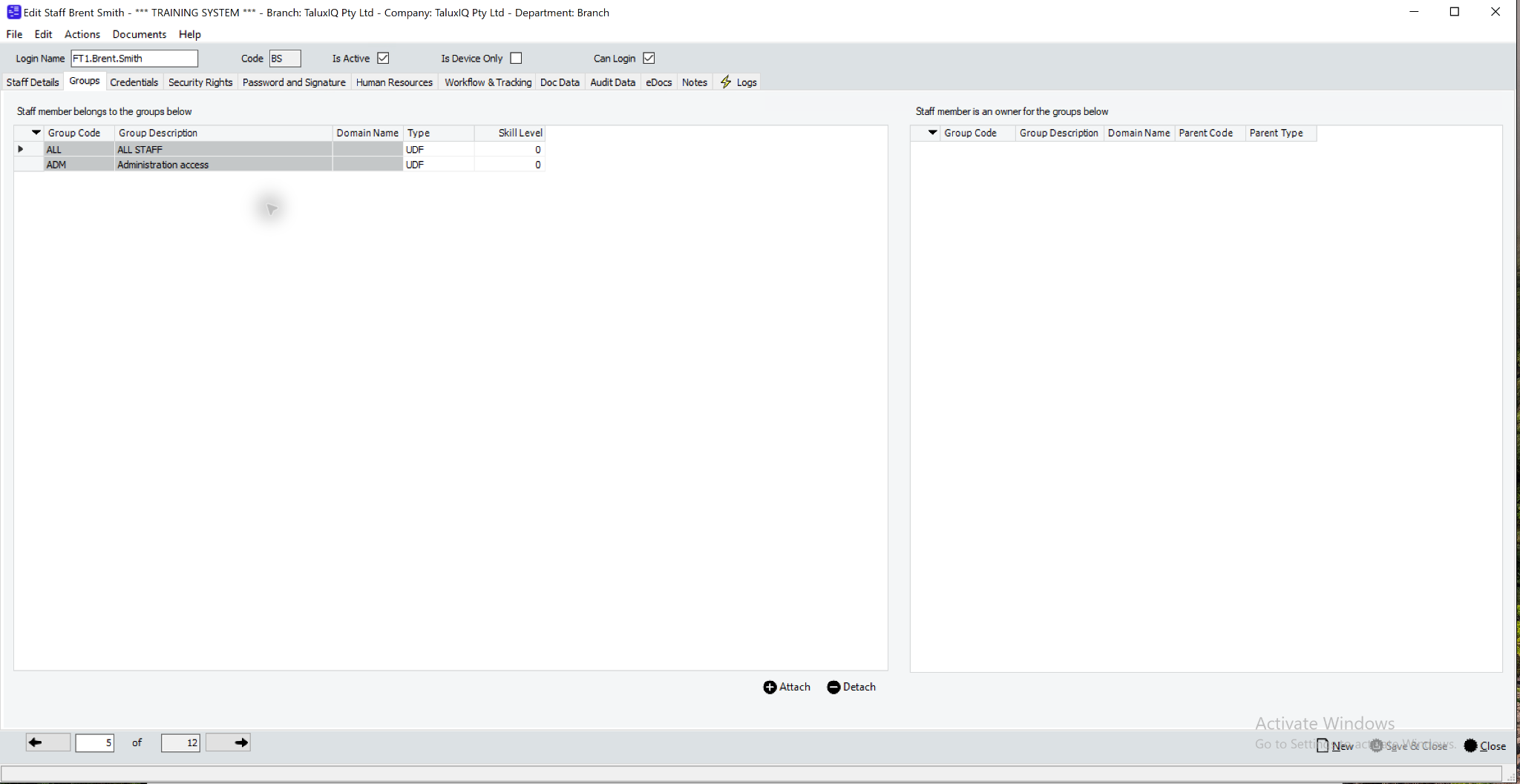
The staff record includes Groups and Security Rights tabs. Your administrator can use an appropriate security group or individual rights, then check the user’s effective access. Existing group names alone do not show which rights the account receives.
- Review both inherited group rights and individual rights. Do not copy a broad group solely because another account belongs to it.
- Agree whether each area requires viewing only, creating or editing records, configuring workflows, exporting data, or processing transactions. These are different capabilities.
- Do not grant ALL, ADM or SYSADMIN solely to follow this guide. Use your organisation’s approved access profile for the agreed scope.
Administrator check: confirm the exact right names, values and company or branch restrictions in your own environment. This is a functional access request, not a certified minimum-rights profile.
Before production changes
Creating the login does not authorise changes to your live configuration or financial transactions. TaluxIQ and your administrator should agree the changes, test records, environment and approval process before configuration or testing begins.
Check and hand over access
Complete these checks using the dedicated TaluxIQ account or a supervised access review. A successful login alone does not confirm that all required areas are available.
Confirm the account works
- The account signs in to the intended CargoWise environment.
- The correct company, branch and department are available, with any restrictions recorded.
- The agreed Operate areas can be opened.
- Company and Branch, Workflow Manager, AP and AR can be opened at the agreed access level.
- The relevant EDI configuration and message status screens can be reviewed.
- Any extra create, edit, export, configuration or transaction rights have a clear purpose and owner approval.
Use a training environment and agreed test records for write tests. Do not create production jobs, post invoices, run payments or change workflows simply to prove that a permission exists.
Send the handover details securely
Reply to your TaluxIQ onboarding contact with the following non-secret details:
- The dedicated login name and named account owner.
- The normal CargoWise connection or launch instructions and the intended environment.
- The approved companies and branches, any access restrictions, and the administrator contact.
- Confirmation that the checks above are complete, plus any screens or actions that remain unavailable.
Share passwords and other credentials only through your organisation’s approved secure method. Do not put them in email, chat, screenshots or this guide. Use your normal authentication controls and access-review process.
If something is unavailable
Ask your CargoWise administrator to review the exact screen, attempted action and error message against the account’s effective rights. Share only a sanitised screenshot if needed. Do not resolve an unknown permission issue by automatically adding administrator access.
What happens next
Once access is confirmed, TaluxIQ will review the setup with you and agree the integration configuration and testing plan. Machine-to-machine eAdaptor access is a separate configuration step; a staff login is not an eAdaptor credential.
Keep access under review
Record who owns the account and when access will be reviewed. Remove or adjust access through your normal process when the engagement or approved scope changes.