Keep the address book right
Updated
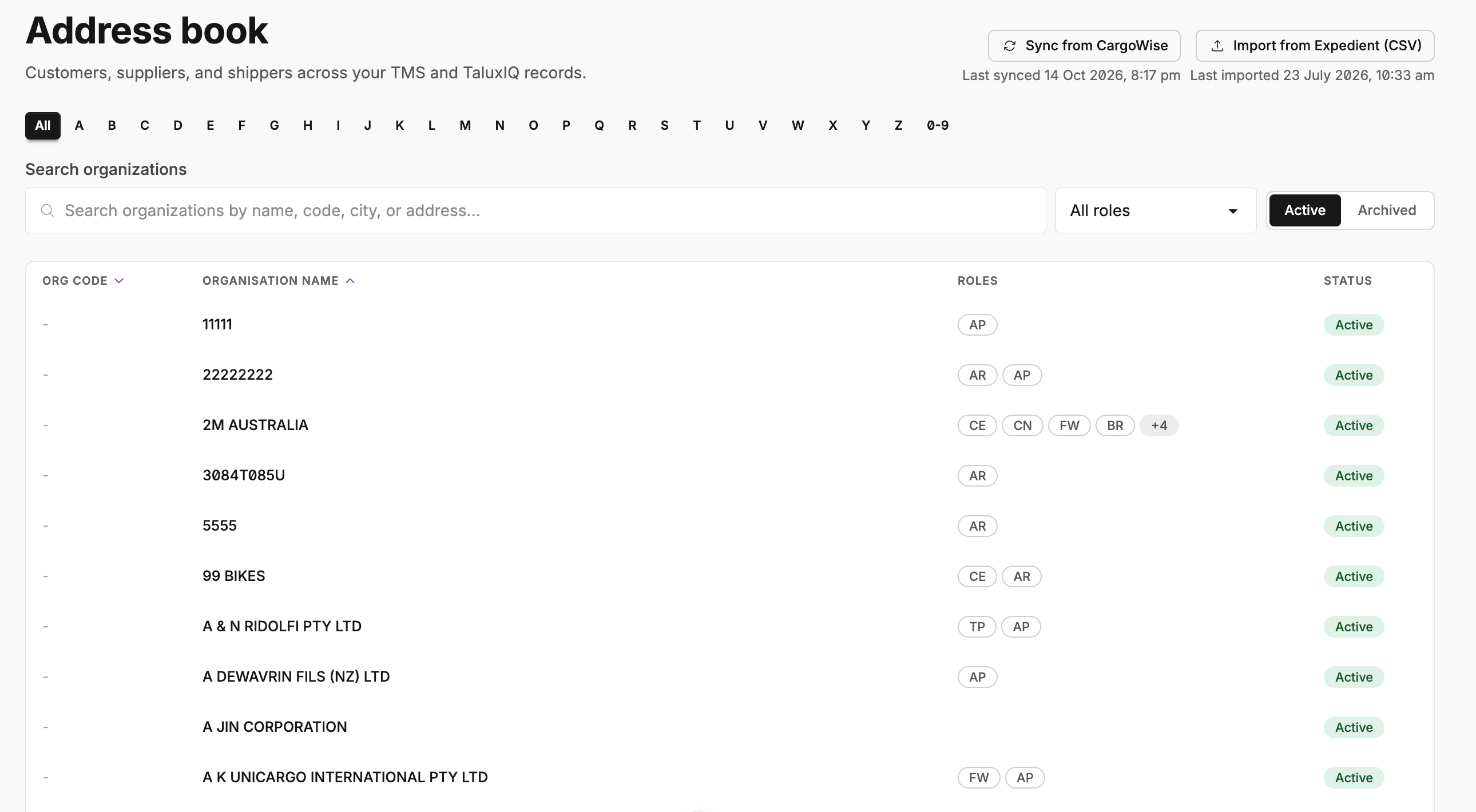
The Address book under Settings holds every organisation TaluxIQ knows: your customers, suppliers, agents, carriers and brokers, with the codes your TMS uses for them. RegoIQ matches the parties it reads from documents against this list, so a complete, current address book is what makes jobs arrive with the right parties already set.
Where the records come from
Records come from your TMS, not from typing. On CargoWise, select Sync from CargoWise; on Expedient, Import from Expedient (CSV) (see Set up your Expedient integration). Under each button, Last synced or Last imported shows when the list was last refreshed. There is no button to create an organisation by hand.
Sync from CargoWise
- Select Sync from CargoWise, then choose Prefix Search or Exact Codes.
- For a prefix, enter the start of the organisation codes you want, such as
A%, or%for every organisation. For exact codes, paste the codes separated by commas or new lines, up to 50,000. - Select Start Sync. The sync runs in the background; you can close the dialog. If CargoWise is busy, TaluxIQ pauses and asks again.
- If the dialog ends with codes that could not be retrieved, run the sync again for those codes.
One sync runs at a time per organisation. Run it again whenever organisations change in CargoWise.
Reading the list
Each row shows the Org code from your TMS, the name, its roles and its status. Search by name, code, city or address, filter by role, or use the letters across the top. The role pills are short codes: hover one to see its meaning. The common ones are CN consignor, CE consignee, NP notify party, FW forwarder, BR broker, CA carrier, CU customer, SU supplier, AR receivables and AP payables.
Switch between Active and Archived. An archived organisation stops appearing in pickers and lookups; jobs that already name it keep it.
What you can change, and what the TMS owns
Open an organisation to see its details across Overview, Roles, Addresses, Integrations, Aliases and Audit. For an organisation that came from CargoWise or Expedient, the names, roles and addresses belong to the TMS: change them there and the next sync or import brings them across. In TaluxIQ you can:
- Add notes, kept in TaluxIQ only and never sent to your TMS.
- Remove from address book or Restore. Removing hides it from pickers; if the TMS still holds it as active, the next update brings it back, so deactivate it in the TMS to keep it gone.
Aliases are the other names an organisation goes by on documents. When you approve a party rule or a learning, the matched name is saved as an alias so later jobs find the organisation directly; see How corrections become rules.
Agent network
If your organisation keeps an overseas agent directory, the Agent Network tab lists agents with their coverage, tier and contacts, linked to their address book record where one exists. People with the Agent network role can add agents, edit them and enrol candidates suggested from Expedient.