Match Talux to your CargoWise document types
Updated
Your CargoWise has its own eDoc document types, and you may have created or renamed some of them. Import from CargoWise reads the list exported from your CargoWise and finds the code your CargoWise uses for each Talux document, so documents Talux sends into CargoWise land under your codes. You review every change before anything is saved.
Use it when you first connect CargoWise, and again whenever you add or rename document types in CargoWise.
Before you start
- You need the Organisation admin role.
- Your document type list exported from CargoWise, as below. Talux reads Excel (.xlsx) or CSV, up to 5 MB, with the Doc Type, Description and System columns.
Export your document type list from CargoWise
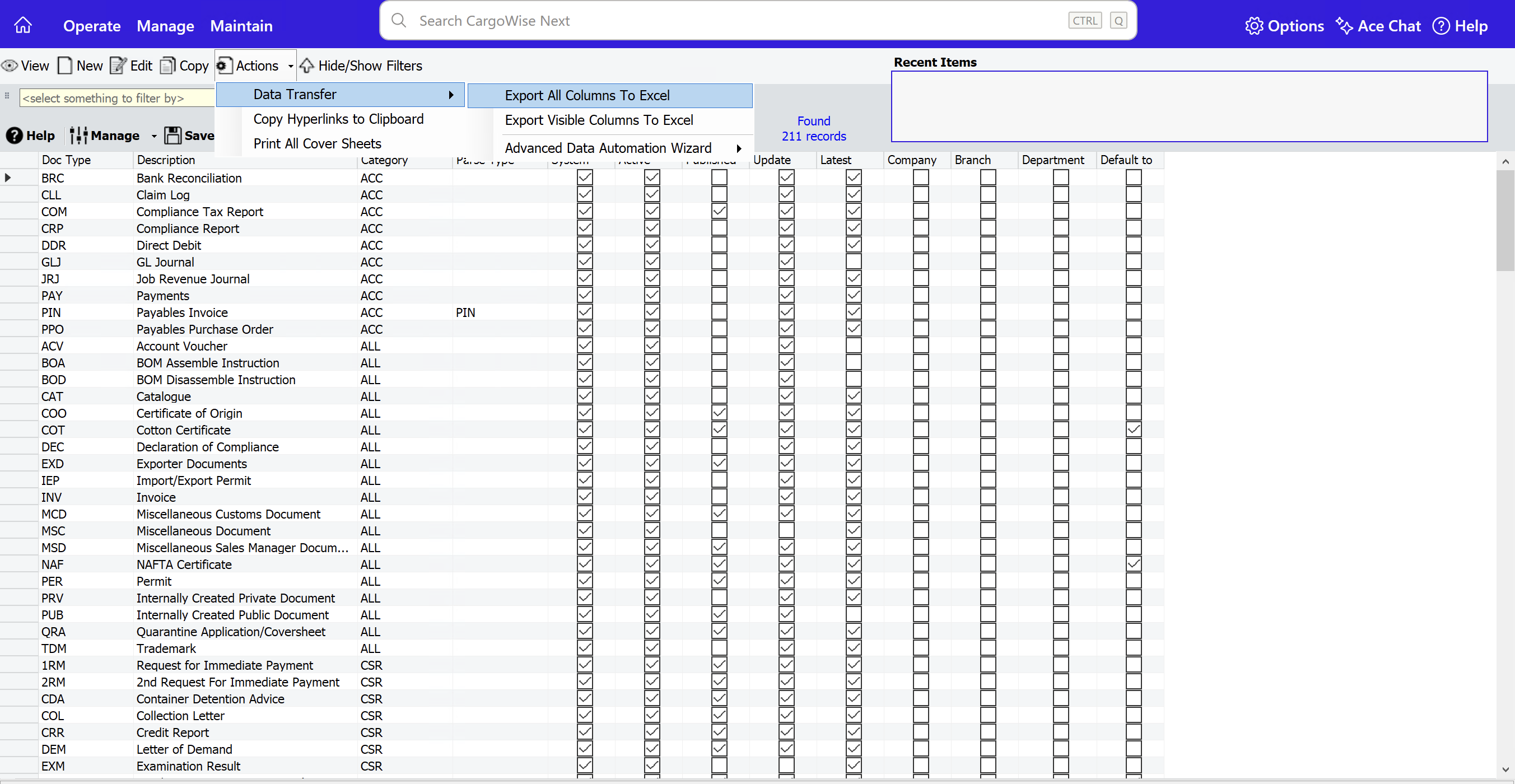
- In CargoWise, go to Maintain > Reference Files > Document Types.
- Show all document types, with no filter applied. The number of records found is shown above the list.
- Select Actions > Data Transfer > Export All Columns To Excel, and save the file.
Use Export All Columns To Excel rather than Export Visible Columns To Excel, so the file includes the System column, which tells Talux which types you created.
Upload your list
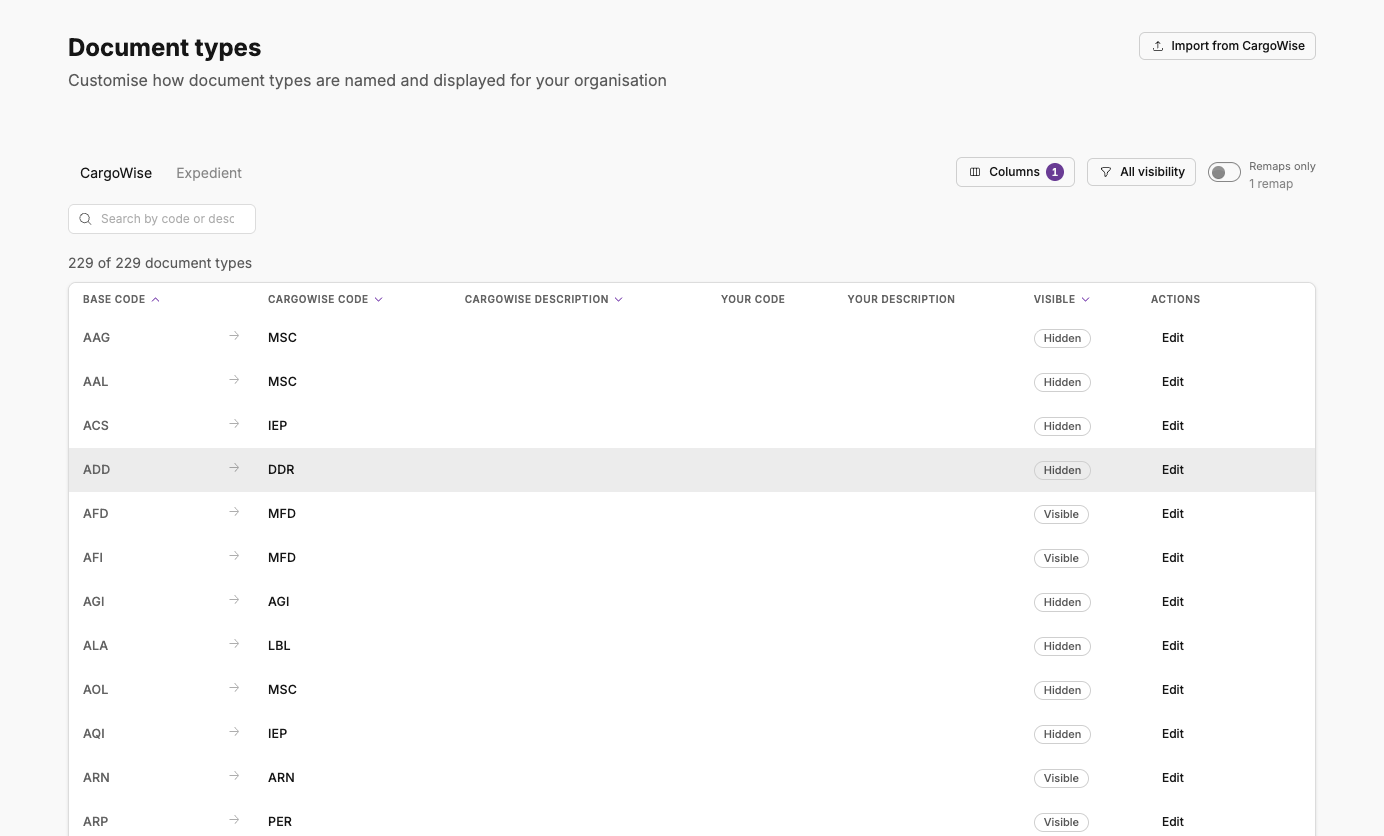
- Go to Settings > Document types and open the CargoWise tab.
- Select Import from CargoWise.
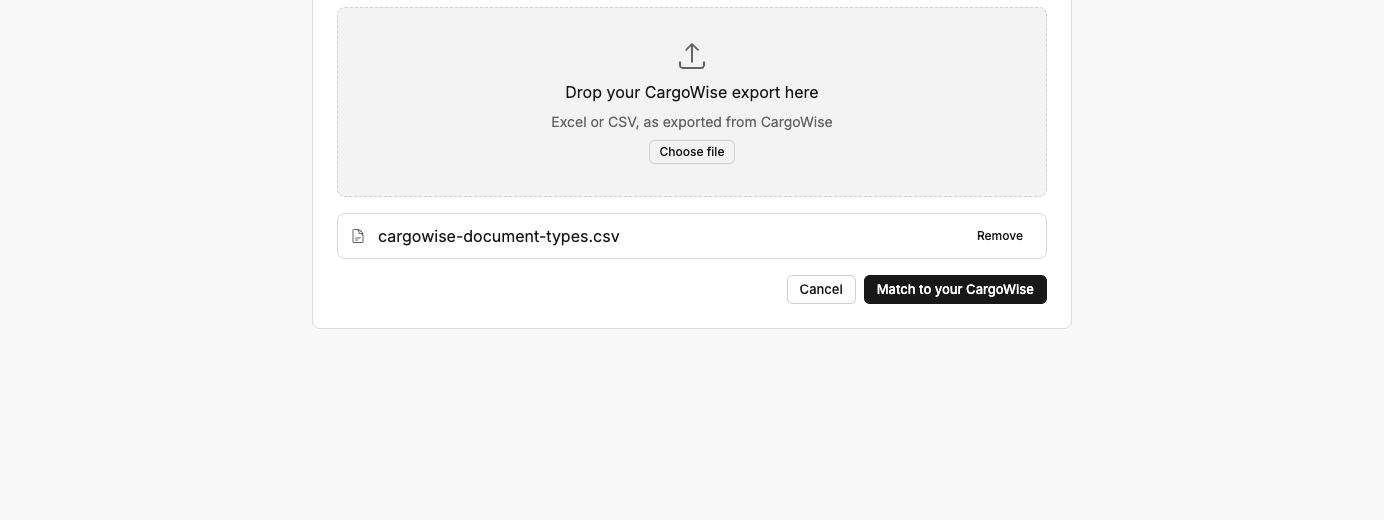
- Drop your export onto the page, or select Choose file.
- Select Match to your CargoWise. Talux reads your list, which usually takes under a minute.
Review the matches
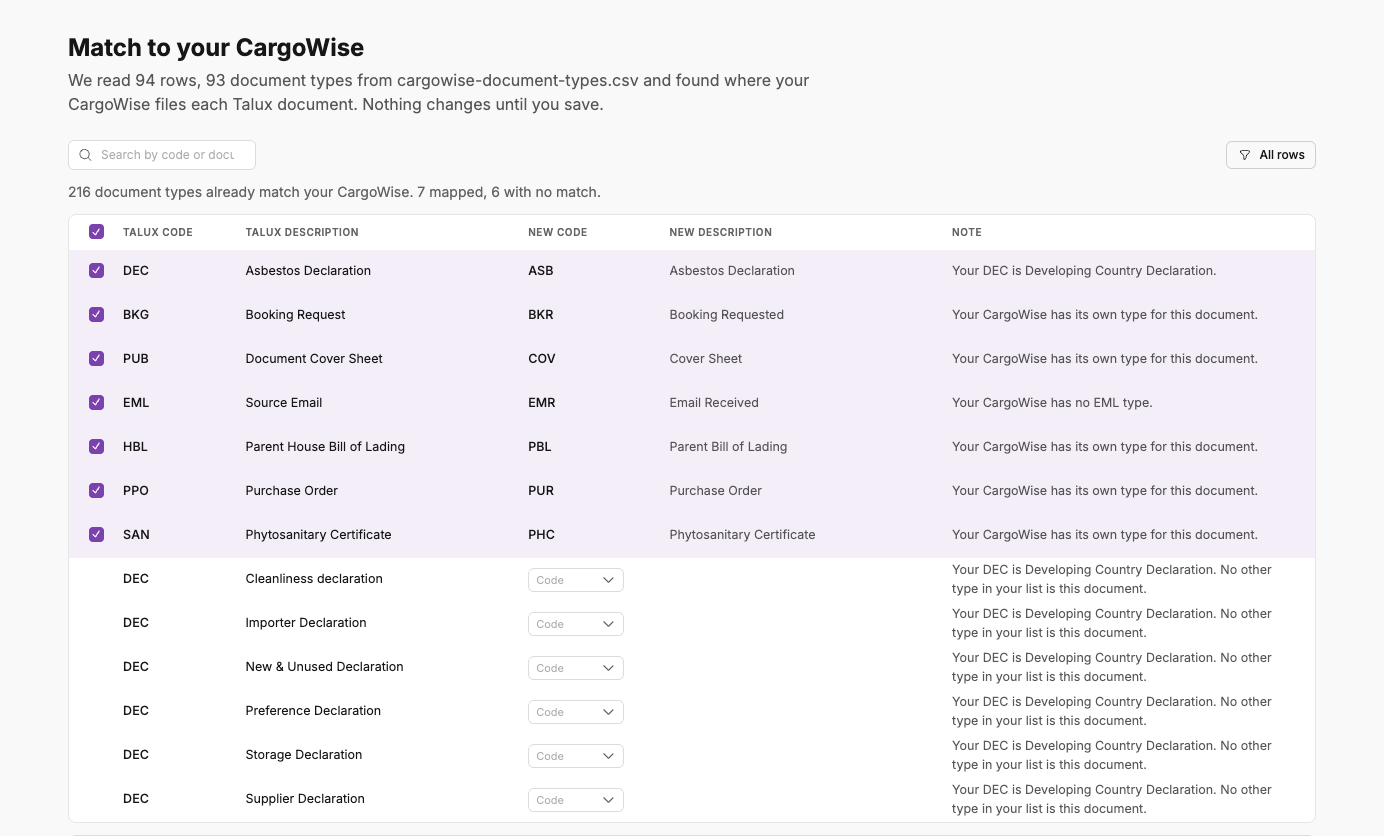
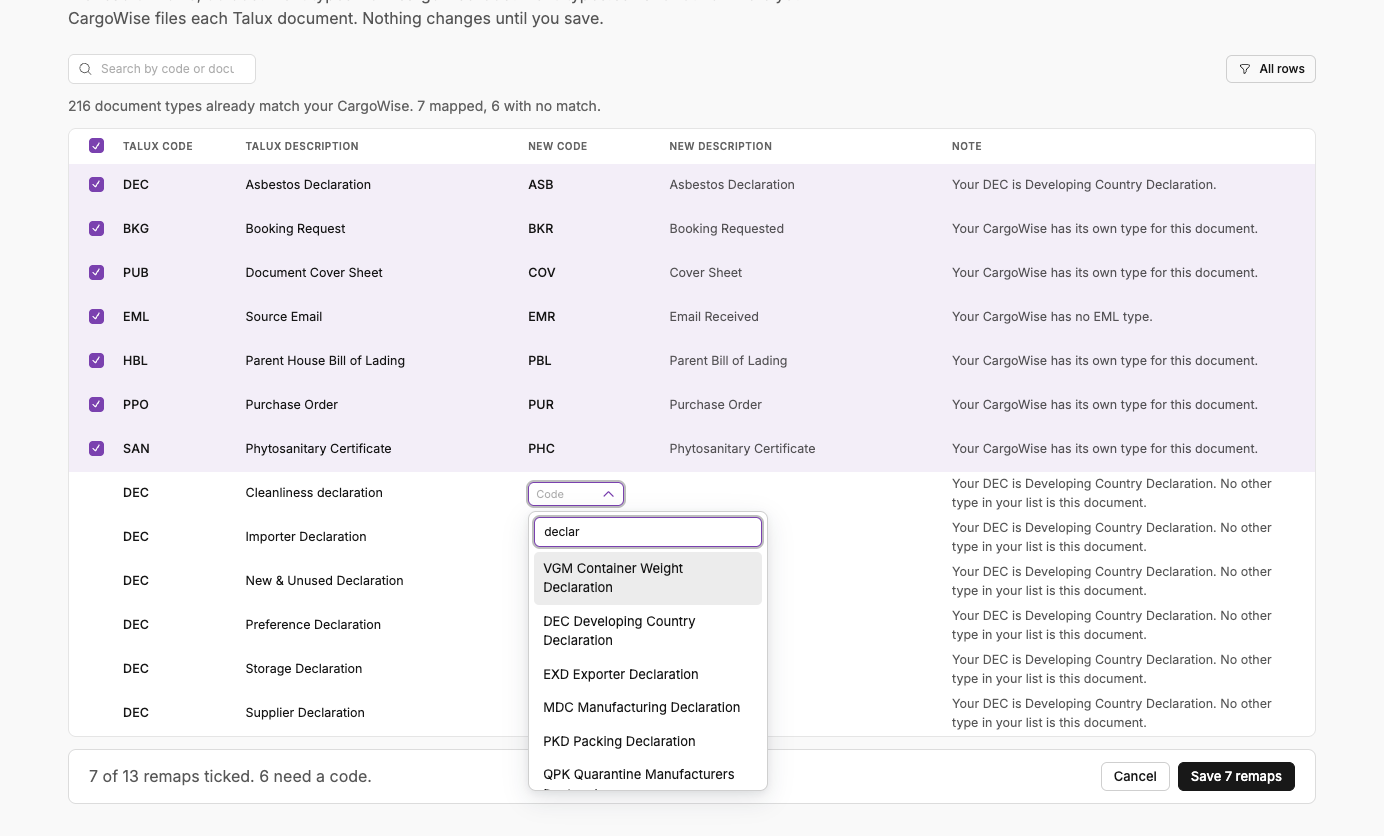
The Match to your CargoWise page lists only the document types that need a change. The line above the table says how many already match your CargoWise; those are left as they are and not shown.
Each row is one document type. Talux code is the code Talux uses for it today and Talux description is the document. New code is the code from your CargoWise it will use instead, with New description from your list. The Note says why the row is there.
| Note | What it means |
|---|---|
| Your CargoWise has its own type for this document. | You created a type for this document in CargoWise, so Talux will use it. |
| Your CargoWise has no … type. | The code Talux uses today is not in your list. |
| Your … is … | The code Talux uses today means a different document in your CargoWise. |
| No other type in your list is this document. | Nothing in your list matches. Pick a code or leave the row. |
- Check each ticked row. Untick any where the code on the right is not the one your team files that document under.
- For a row with no match, select the Code box in New code, type part of a code or description, and pick one of your codes. The row is ticked when you pick. Leave the row if you do not want to change it.
- Use the search box or the All rows filter to show only Mapped or No match rows.
Save
- Select Save in the bar below the table. It shows how many remaps are ticked.
Talux saves each ticked row as a remap, with your CargoWise code and description, and takes you back to Document types with Remaps only on, so you see what changed. From then on, documents of those types go to CargoWise under your codes. Nothing changes until you save, and unticked rows are left as they are.
If every type already matches, the page says Talux already matches your CargoWise and there is nothing to save.
Import again later
When you import again, the page shows only what has changed since your saved remaps. A remap you saved stays as it is unless its code is no longer in your list. Rows you left unticked last time are shown again.
To change or remove a single remap, use Edit or Reset on its row in Document types. See Rename and hide document types.
Troubleshooting
| Message | What to do |
|---|---|
| This is not a CargoWise document type list. | Export the document type list again with the Doc Type, Description and System columns. |
| We could not read this file. Upload it as Excel (.xlsx) or CSV. | Save the export as .xlsx or .csv and upload it again. |
| That file is over 5 MB. | Export only the document type list, not other CargoWise data. |
| We could not read your list just now. Try again. | Select Match to your CargoWise again. If it keeps happening, contact Talux support. |
| … remaps changed while you were reviewing. | Someone saved a remap for those types while you were reviewing. The rest saved. Import again to review the named types against the latest. |
| This import has expired. Upload your list again. | An import lasts two hours. Upload your list again. |