Rename and hide document types
Updated
Every document RegoIQ files carries a type: bill of lading, packing list, arrival notice and so on. Your TMS has its own code and name for each, and you may call them something else again. Document types under Settings lets you rename a type for your organisation and, on CargoWise, decide whether documents of that type are visible to your customers.
You need the Organisation admin role.
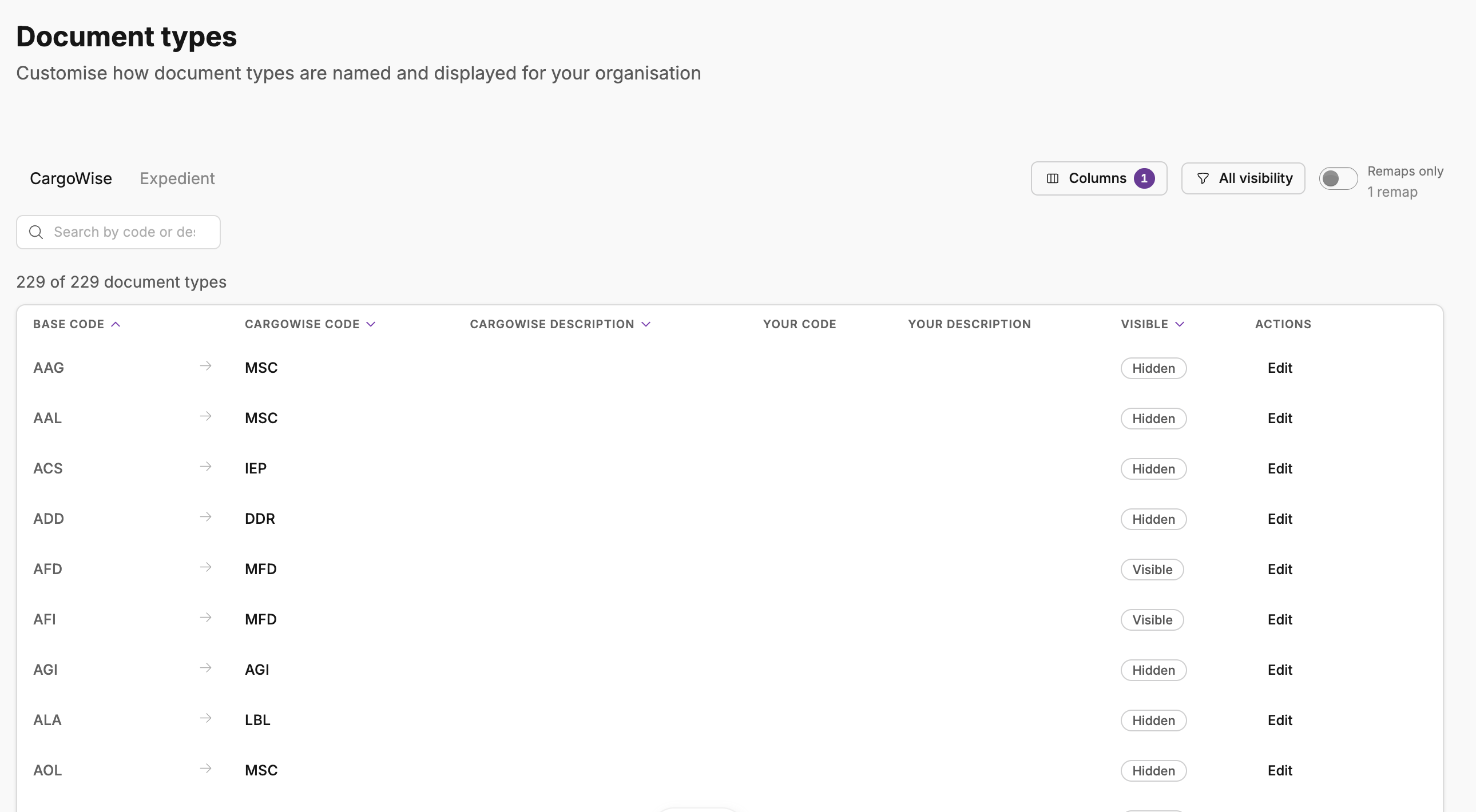
What the list shows
Each row is one document type with its Base code, the code and description your TMS uses, and Your code and Your description. A filled pill is a setting of your own; an outline pill is the default showing through. On CargoWise there is also a Visible column. If you run both TMSs, tabs switch between them.
Search by code or description, show Remaps only to see just the types you have changed, or filter CargoWise types by Visible or Hidden. You cannot add a new type; the list is the set your TMS knows.
Rename a type
- Select Edit on the row.
- Change the Code or Description, and on CargoWise set Visible or Hidden.
- Select Save. Reset on the row removes your change and returns to the TMS default.
What visibility does
A document's visibility is the default for whether it is published to customers when it is filed. A document someone has set by hand on the job page, with Edit document type and Visible to customers or Hidden from customers, keeps that setting. Types the TMS does not know are hidden by default. For Expedient, visibility is managed within Expedient itself, and the page says so.