Get started after your invitation
Updated
Someone in your organisation has added you to TaluxIQ. This article takes you from the invitation email to your first screen, and tells you what to do if the link has expired or you cannot see the area you work in.
Open your invitation
The email is titled You have been invited to your organisation's name on TaluxIQ. It comes in one of two forms, depending on how your organisation signs in.
| Your email says | What to do |
|---|---|
| Set your password | Select the button and choose a password. The link works once and expires 48 hours after it was sent. You are then taken to the sign-in page. |
| Sign in to TaluxIQ | Select the link and sign in with your Microsoft 365 work account, using the address the invitation was sent to. There is no password to set and this invitation does not expire. |
Sign in
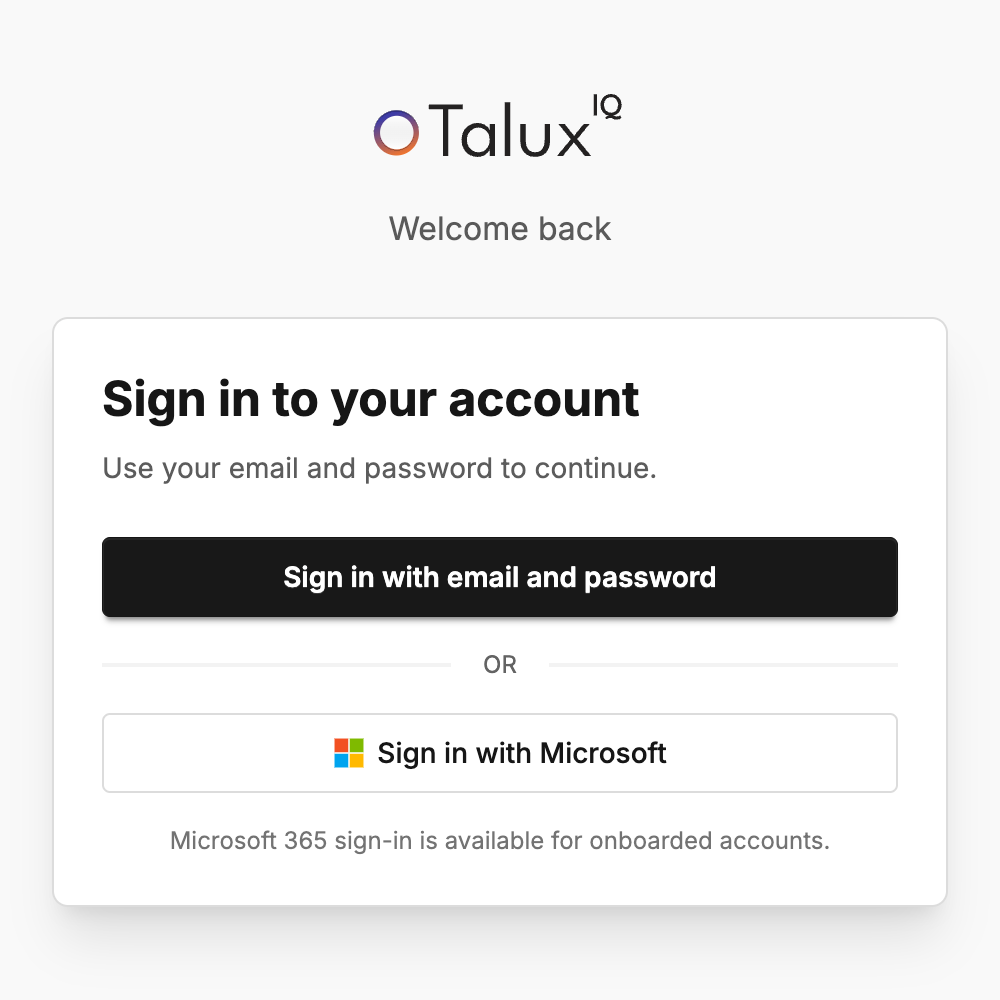
The sign-in page offers two buttons. Use the one your invitation named.
- Sign in with email and password, if you set a password.
- Sign in with Microsoft, if your invitation told you to use your Microsoft 365 work account.
If the link has expired
A set-password link lasts 48 hours and works once. If yours has expired or was already used, ask an organisation admin to open your page under Users and select Send password reset. While you have not yet signed in, that sends you a fresh invitation with a new 48 hour link.
If you do not know who your organisation admin is, ask the person who told you to expect the invitation.
What you see first
The sidebar shows only the areas your organisation admin ticked for you. Find your area below and start with its guide.
| Your area | Where it is in the sidebar | Start here |
|---|---|---|
| Job registration | Job registration, under Imports | Register your first shipment from a pre-alert |
| FreightIQ | Inbox | Connecting your operations inbox |
| Customs invoices | Invoices, under Customs | Prepare a commercial invoice for customs in CargoWise or in Expedient |
| Accounts payable | AP Invoices, under Accounts Payable | How supplier invoices are coded and posted |
| Quotes | Quotes | Build a customer quote |
If you cannot see the area you need
What you can open is set by your organisation admin, not by TaluxIQ support.
- A screen titled No access means no area has been ticked for you yet. It shows the address you are signed in as, so you can check you used the right account.
- A sidebar without the entry you expected means that one area is missing.
- A message titled Access Denied means you opened a page outside your areas, usually from a link a colleague sent.
In each case, ask an organisation admin to open your page under Users, tick the area under What this person can do and select Save changes. Then reload TaluxIQ. If the area still does not show, sign out and sign in again.
Areas for products your organisation does not use are not offered to your admin. If the whole product is missing, your admin can ask their TaluxIQ contact about it.
Related articles
- Register your first shipment from a pre-alert
- Connecting your operations inbox
- Managing team members, for organisation admins