How invoices get to Xero
Updated
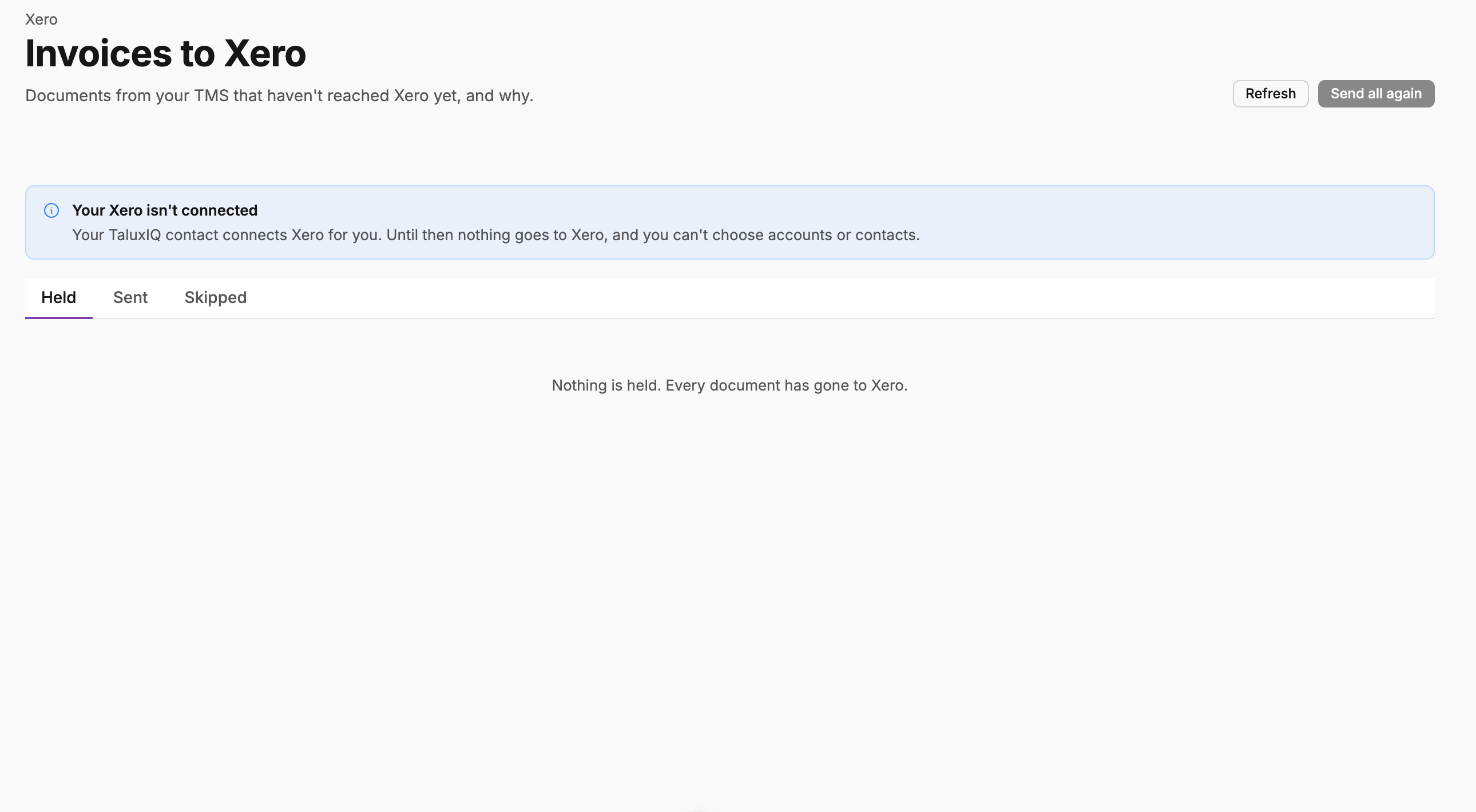
TaluxIQ sends the invoices and credit notes your TMS raises into your own Xero as drafts, so your bookkeeper approves them in Xero as usual. This article explains which documents go, when, and what the three tabs on Invoices to Xero show.
You need to be an organisation admin to see the Xero group in the sidebar, and your TaluxIQ contact has to have connected your Xero first. Until then the page says Your Xero isn't connected.
Which documents go to Xero
- From CargoWise: invoices and credit notes on the receivables and payables ledgers. Each one goes as an AR invoice, AP bill, AR credit note or AP credit note.
- From Expedient: creditor invoices, which go as AP bills.
Every document lands in Xero as a draft. Nothing is approved or paid from TaluxIQ. Your TMS stays the record of what was invoiced: when lines or totals change there, TaluxIQ picks the change up from the TMS and sends again. Correcting a document in Xero alone does not change the TMS.
Overheads that CargoWise posts straight to a general ledger account with no job are left out of Xero on purpose. They are not held and do not appear on any tab.
Tax on the drafts
Each draft carries the tax your TMS put on the transaction, line by line, so its tax and total match the TMS to the cent. Xero's tax rates never change the amount.
- From CargoWise: each line takes the tax CargoWise charged on it.
- From Expedient: Expedient gives one GST amount for the invoice and marks which lines carry GST. TaluxIQ shares that amount across the marked lines in proportion to their amounts.
Each line also carries a Xero tax rate. It labels the line and decides where that tax is reported, for example which box of your GST or sales tax return. You choose it per tax code on Tax codes under Xero, one rate for receivables and one for payables:
- A line whose tax code has a rate sends with that rate.
- A document whose tax code has no rate for its direction is held until you choose one.
- A CargoWise line with no tax code sends with the rate on the No tax code row, or the default tax rate of its Xero account when that row has none. It is never held for tax.
When they go
Your TaluxIQ contact sets whether receivables, payables or both go by themselves. When a kind of document is set to go automatically, it is sent as soon as TaluxIQ receives it from the TMS. When it is not, it waits on the Held tab with the reason Waiting for you to send until someone selects Send now.
A document that cannot be sent is held with a reason. Why a document is held for Xero and how to release it lists every reason and the fix.
The three tabs
| Tab | What it shows | What you can do |
|---|---|---|
| Held | Documents from your TMS that have not reached Xero yet, and why. The Status column reads Held, Send failed or Not sent yet. | Select a row to read every reason and the next step. Send now on a row, Send selected on ticked rows, Send all again for everything, or Don't send to move ticked rows to Skipped. |
| Sent | Documents sent to Xero as drafts, newest first, with the date sent. | Open in Xero on any row. There is no resend or void from here: change the document in your TMS or in Xero. |
| Skipped | Documents your team or TaluxIQ chose not to send, newest first, with who chose and when. | Nothing. A skipped document cannot be sent later, so skip only when it is already in your books. |
When you open a held row, the drawer shows the draft as it would go to Xero: party, type, reference, dates, currency and exchange rate, then each line with its Charge code, Xero account, Tax rate, Tax and amount before tax. Tax rate is the Xero rate the line sends with and Tax is the amount from your TMS that the draft sends. A line flagged Not mapped, No charge code or No tax rate is the one holding the document. Tax differs appears only on documents held before drafts carried the tax from your TMS.
Pause sending
- On the Held, Sent or Skipped tab select Pause sending, then confirm with Pause sending in the dialog.
- While paused, new documents are held with the reason Automatic sending to Xero is paused. You can still send any of them yourself with Send now.
- Select Resume sending to start again. TaluxIQ sends the held documents straight away and tells you if any stayed held.
Use this during a month-end close or a Xero migration, when you want nothing new landing in Xero until you say so.