Choose a Xero tax rate for each tax code
Updated
Each invoice line your TMS sends to Xero can carry a tax code. On Tax codes under Xero you choose the Xero tax rate each code sends with: one for receivable lines and one for payable lines. The rate labels the line in Xero and decides where its tax is reported, for example which box of your GST or sales tax return.
The tax amount itself never changes. Each draft carries the tax your TMS charged, to the cent, whatever rate it is labelled with.
You need to be an organisation admin, and your Xero has to be connected.
Where the codes come from
- CargoWise: the list is the tax codes CargoWise has put on your invoices. A code appears once CargoWise sends an invoice that uses it. The Seen on column tells you whether it has turned up on receivable lines, payable lines or both.
- Expedient: Expedient marks each line as carrying GST or not, so its list always has two codes, GST and No GST.
If you run more than one TMS, each has its own list and a control at the top switches between them.
Choose the rates
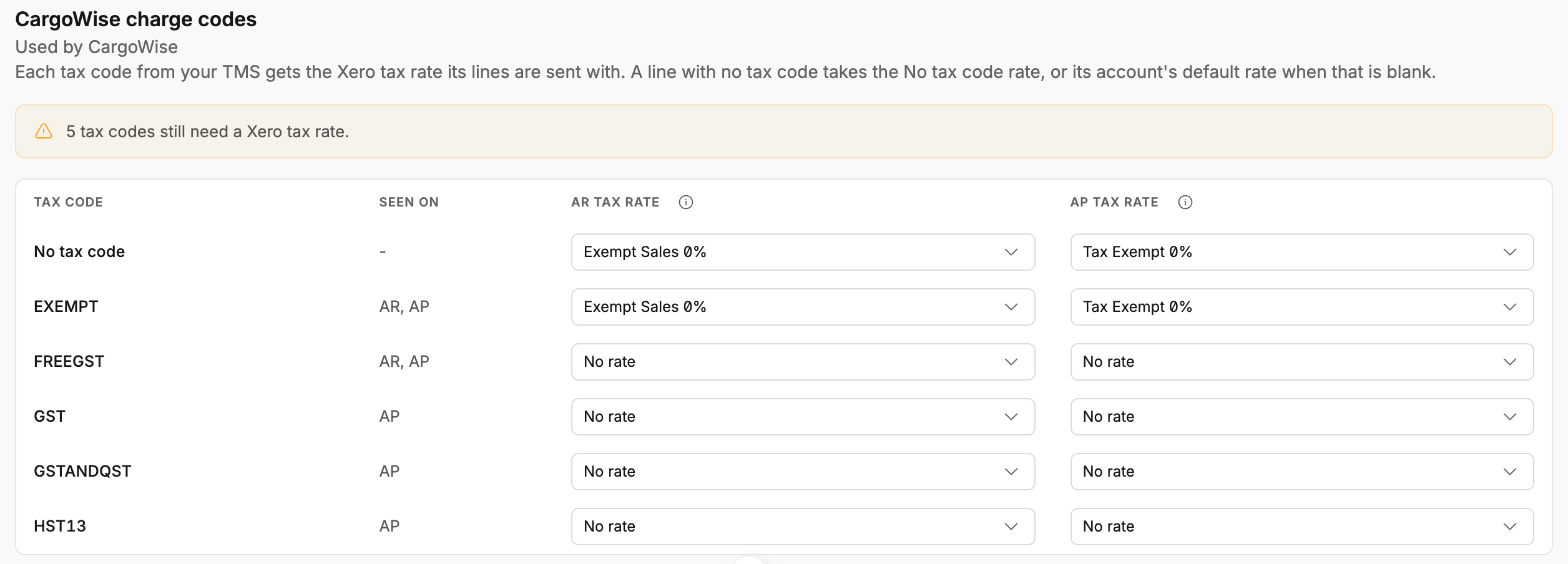
- Open Tax codes. The banner at the top counts the codes that still need a Xero tax rate.
- For each code choose an AR tax rate and an AP tax rate from your Xero tax rates. Each list shows the rates Xero allows on that side first, then every other active rate. Leave a side at No rate if the code never appears there.
- Select Save tax rates. TaluxIQ sends held documents again straight away and tells you if any stayed held.
Choose by what the code means in your TMS, not by its percentage. A code's name can show a different rate from the tax it really carries.
Lines with no tax code
CargoWise can send a line with no tax code. The No tax code row at the top of a CargoWise list sets the rate those lines send with:
- Choose an AR tax rate and an AP tax rate on the row, then select Save tax rates. Lines with no tax code send with that rate from then on.
- Leave the row at No rate and those lines take the default tax rate of the Xero account they post to. Choose accounts whose default rate suits how you report each charge.
A line with no tax code never holds a document. Drafts already in Xero keep the rate they were sent with.
Expedient lists have no No tax code row, because every Expedient line is GST or No GST.
Troubleshooting
| What you see | What to do |
|---|---|
| A document is held with "Tax code GSTANDQST in CargoWise charge codes has no AR tax rate in Xero" | Choose an AR tax rate for that code on Tax codes and save. The document sends again by itself. |
| A rate shows "(not in Xero)" | The rate was saved but has since been removed or archived in Xero. Choose a current rate and save. |
| No rates to choose from | Connect your Xero first. If it is connected, refresh the page. |
| A line has the wrong rate in Xero | Check the rate for its tax code here, or the No tax code row if the line has no code. A new rate applies to documents sent after you save, not to drafts already in Xero. |