Prepare a commercial invoice for customs in Expedient
Updated
CompileIQ reads a commercial invoice and pulls out its header and line items so you can check them against the document. You then export the invoice as a CSV and import that file into Expedient. Use this when a supplier's commercial invoice needs to reach an Expedient job.
CompileIQ reads the commercial invoice only. It does not read packing lists, bills of lading or permits.
Before you start
- What you can do here is set by your user role. Viewing invoices lets you see the page. To upload, edit or link an invoice, your role also needs to allow changing invoices; without it the fields are read only and the upload button is hidden. If you cannot see Customs in the sidebar, or cannot change an invoice, ask an admin in your organisation to update your role.
- To find your Expedient jobs when you link an invoice, your Expedient integration needs to be set up. See Set up your Expedient integration.
Open your customs invoices
- In the sidebar, under Customs, select Invoices.
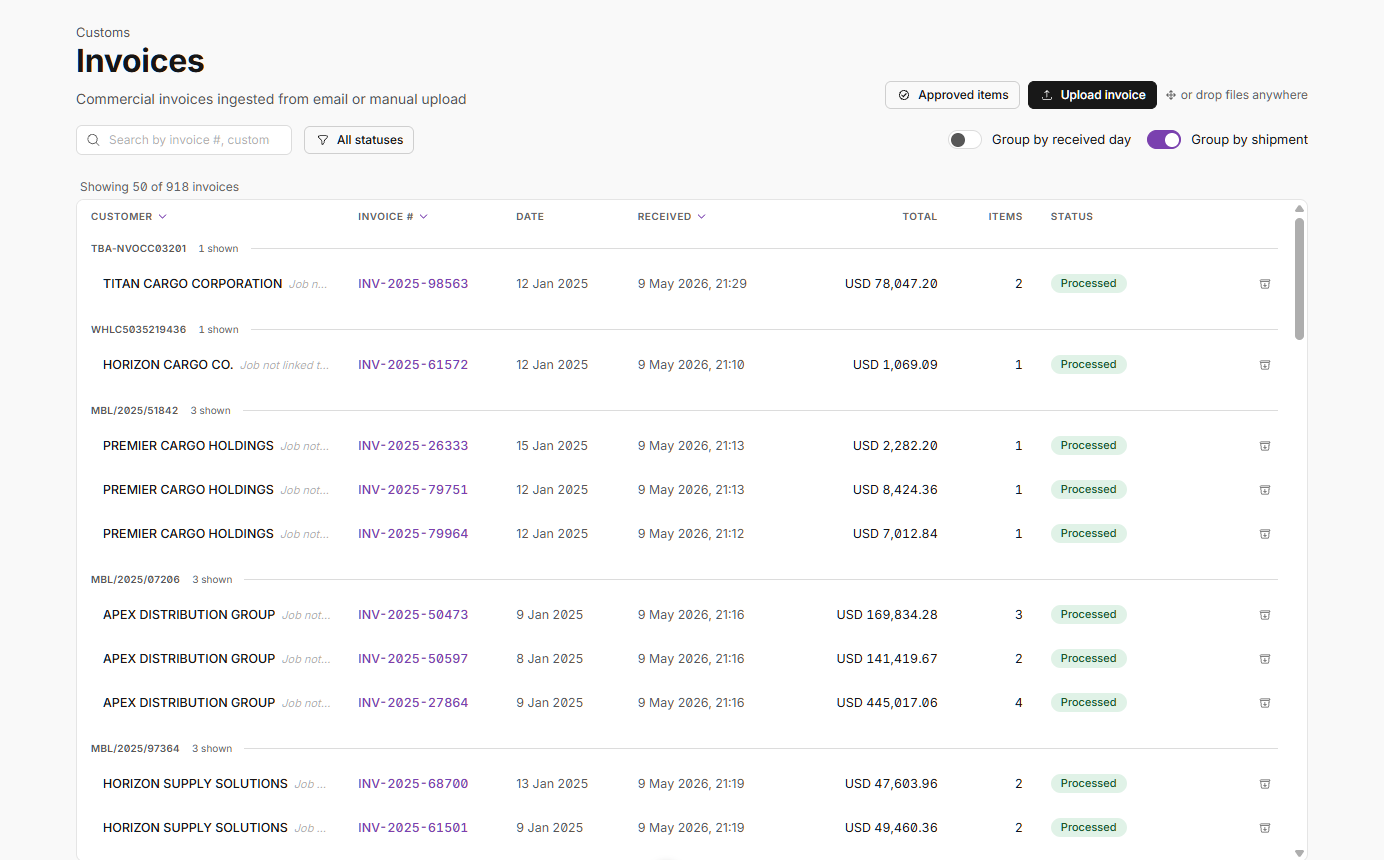
The list shows each invoice with its Customer, Invoice #, Date, Received, Total, Items and Status. Invoices that arrive by email appear here as well as the ones you upload.
To narrow the list, use Search by invoice #, customer, or job or the All statuses filter. Turn on Group by received day or Group by shipment to group the rows.
Upload a commercial invoice
- Select Upload invoice and choose one or more files. You can also drag files anywhere onto the page and drop them when you see Drop invoice to upload.
- Watch the chip for each file above the list. It reads Processing while CompileIQ reads the invoice, then Processed when it is ready. Already uploaded means the same file is already in the list.
Accepted file types are .pdf, .jpg, .jpeg, .png, .xlsx, .xlsm, .xls, .csv, .docx and .doc. PDFs and images can be up to 50 MB. Spreadsheets and .docx files can be up to 4.5 MB.
Check what CompileIQ read
- Select the invoice number, or anywhere on the row, to open the invoice.
- Select Show file to see the original document beside the fields. Hide file closes it again.
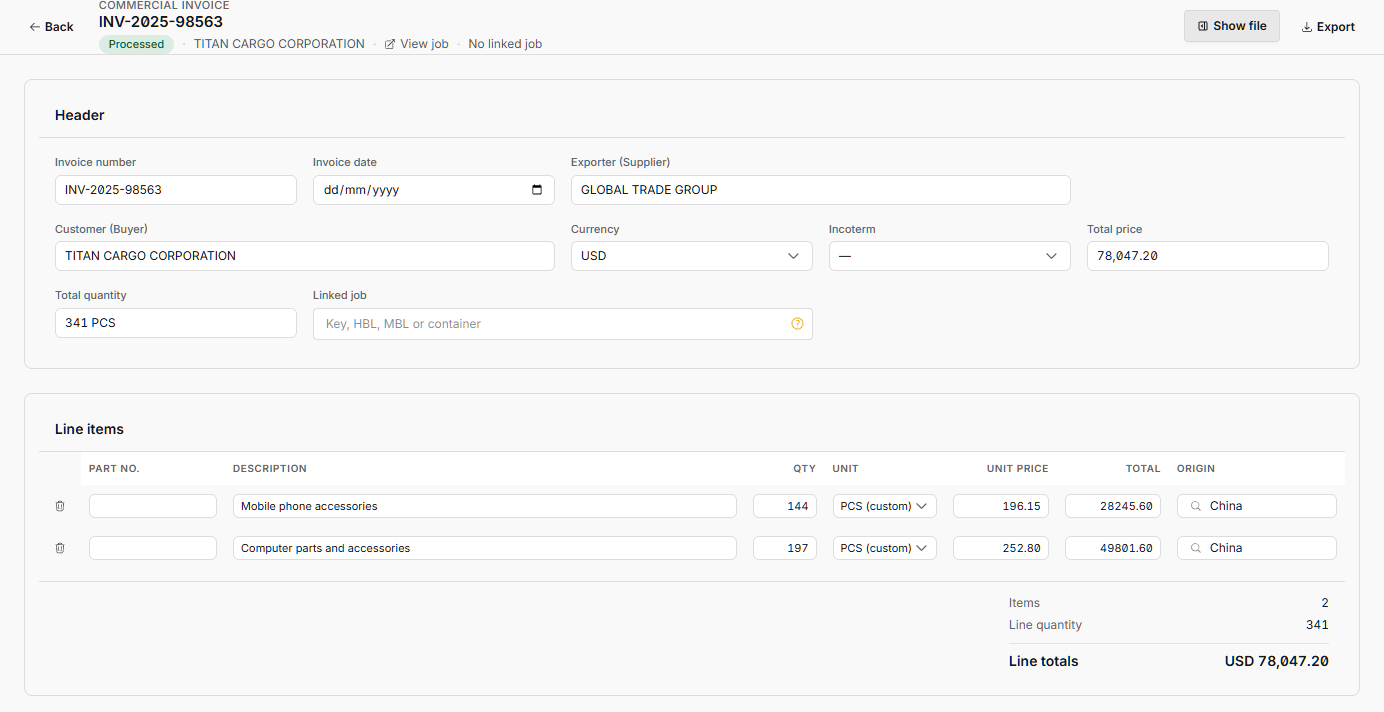
- Compare the Header and Line items with the document and correct anything that is wrong. Each change saves when you leave the field, and you see Saving… while it saves.
Header
| Field | What it holds |
|---|---|
| Invoice number | The supplier's invoice number |
| Invoice date | The date on the invoice |
| Exporter (Supplier) | The seller, as written on the invoice |
| Customer (Buyer) | The buyer, as written on the invoice |
| Currency | The invoice currency |
| Incoterm | The Incoterm on the invoice |
| Total price | The total the invoice declares |
| Total quantity | The total quantity the invoice declares |
| Linked job | The job this invoice belongs to. See Link the invoice to a job. |
Line items
| Column | What it holds |
|---|---|
| Part No. | The item or customer part number |
| Mfr part no. | The manufacturer part number. Shown only when the invoice has one. |
| Description | The goods description |
| Qty | Quantity |
| Unit | The unit, chosen from the list of package type codes |
| Unit price | Price per unit |
| Total | The line total |
| Origin | Country of origin. Type the country name or its code to find it. |
To remove a line that should not be there, select Delete line (the bin icon) at the start of the row.
Under the table, Items, Line quantity and Line totals add up the lines. If the line totals do not match the invoice total, Declared total appears so you can compare the two.
Flags
CompileIQ checks what it read against the invoice. A line that passes shows nothing. When something does not check out, a warning tells you what to look at:
- Under a line: the sum on that line does not work out, or a value on it was not found on the invoice, for example "The unit price on line 3 is not on the invoice."
- Above the table: the invoice total does not match its lines, or a header value was not found on the invoice.
- Check the line items: the lines did not add up to the invoice's own totals. The invoice is saved; compare the lines with the document.
- "These lines have not been checked against the invoice. Read them as you would any other." means the check could not run on this invoice.
For each flag, open the file, find the value on the document and correct the field. A flag does not stop you exporting the invoice.
Link the invoice to a job
You can export without a link, but linking ties the invoice to its Expedient job and gives it the job's house bill. With a house bill, you can export every invoice on it as one file.
- In the Header, select the Linked job field.
- Search by key, house bill, master bill or container (the field shows Key, HBL, MBL or container) and pick the job.
The linked job reference then shows at the top of the invoice. Select View job, or the HBL number where there is one, to open the job. No linked job means the invoice is not linked yet. To unlink, select Unlink this job in the field.
You can also link from the list. On a row that shows No linked job, select Link, choose Expedient, enter the job number and select Link. If the number is not a job in Talux or Expedient, it is saved but the invoice stays unlinked, and you see Not linked.
Export the invoice for Expedient
- Open the invoice and select Export. It shows once the invoice has been processed.
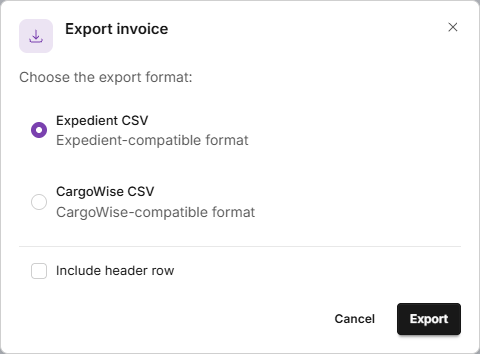
- In the Export invoice dialog, leave Expedient CSV selected.
- If the invoice has a manufacturer part number, choose which number to export: Part No. (the default) or Manufacturer part no. The file carries only one.
- If the invoice has a house bill, leave Combine all invoices for house bill … into one file ticked to export every invoice on that house bill as one CSV. The invoices it includes are listed under the option. Untick it to export only this invoice.
- Tick Include header row if you want column names in the file.
- Select Export.
The CSV downloads and you see "Invoice exported successfully". The invoice status changes to Exported. When you combine a house bill, every invoice in the file changes to Exported.
Import the CSV into Expedient
Load the file onto the brokerage job. A combined house bill file loads the same way as a single invoice.
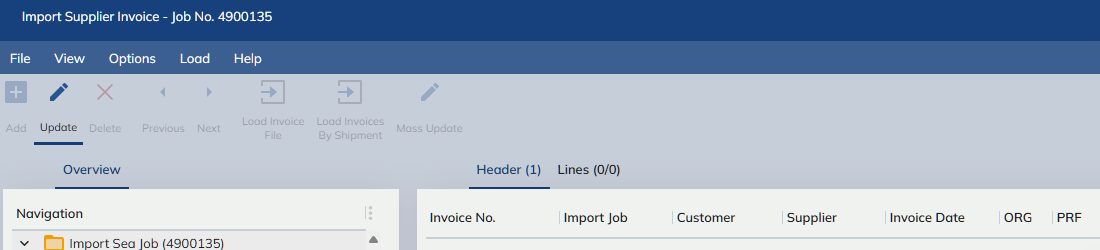
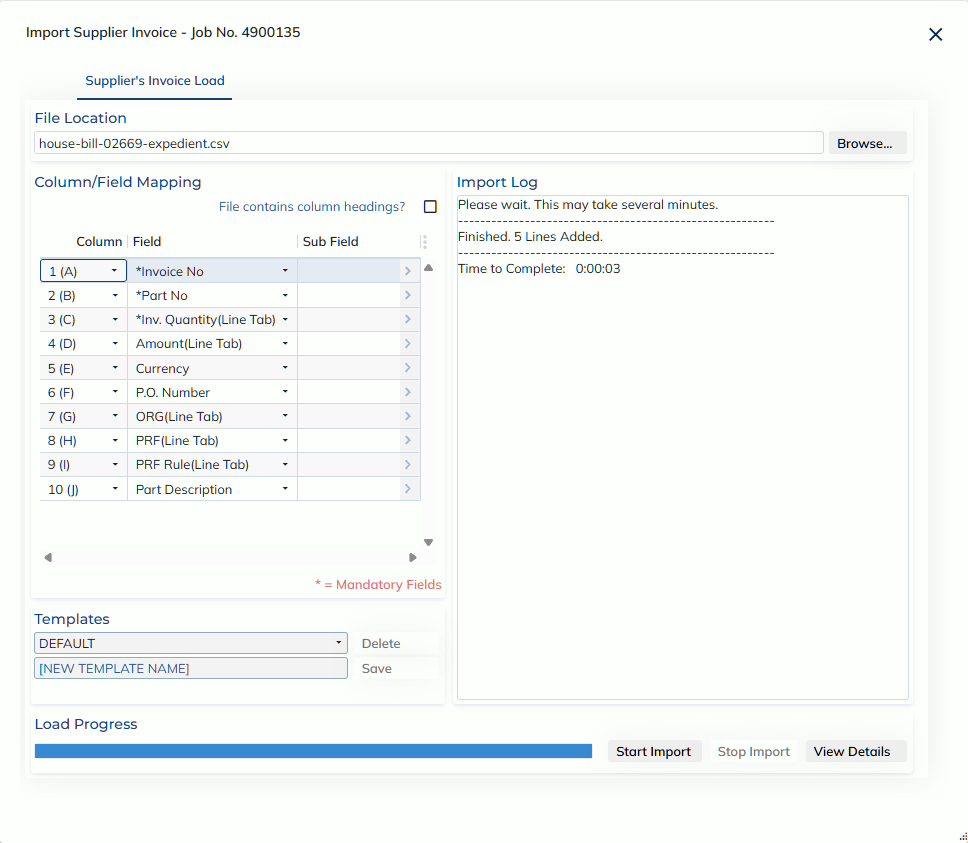
- In Expedient, open the job and go to its Import Supplier Invoice screen (Supplier Invoice on the Job Registration toolbar).
- Select Add, or Update for an invoice already on the job, then select Load Invoice File.
- In Supplier's Invoice Load, select Browse… and choose the CSV you exported.
- Under Templates, pick your CompileIQ template. The first time, set the mapping as shown below and save it as a template.
- If you ticked Include header row when exporting, tick File contains column headings?.
- Select Start Import.
The Import Log reports how many lines were added, for example "Finished. 5 Lines Added." Select View Details for more.
Set up the template once
Expedient reads the file through a column mapping. The CompileIQ Expedient CSV has seven columns, so map them like this:
| Column | Holds | Field in Expedient |
|---|---|---|
| 1 (A) | Invoice number | *Invoice No |
| 2 (B) | Part number (the one you chose on export) | *Part No |
| 3 (C) | Quantity | *Inv. Quantity(Line Tab) |
| 4 (D) | Line total | Amount(Line Tab) |
| 5 (E) | Currency | Currency |
| 6 (F) | Description | Part Description |
| 7 (G) | Country of origin, as a two-letter code such as CN | ORG(Line Tab) |
The DEFAULT template maps column 6 to P.O. Number, which would put the descriptions in the wrong field. Type a name over [NEW TEMPLATE NAME] and select Save, then pick that template each time.
What the statuses mean
| Status | Meaning |
|---|---|
| Pending | Uploaded and waiting to be read |
| Processing | CompileIQ is reading the invoice. The page refreshes when it is ready. |
| Processed | Read and ready to check and export |
| Failed | The invoice could not be read |
| Exported | Exported as a CSV, on its own or in a house bill file |
The All statuses filter narrows the list by Pending, Processing, Processed or Failed. You can export an invoice again after it shows Exported.
Troubleshooting
I cannot see Customs or change an invoice
Your user role does not include access to invoices, or only lets you view them. Ask an admin in your organisation to update your role.
There is no Export button
The invoice has not finished processing, or processing failed. Wait for Processed, or see Processing failed below.
The combine option does not show
The invoice has no house bill, or Expedient CSV is not selected. Link the invoice to its Expedient job so it picks up the job's house bill, then export again.
Failed to export invoice
The file could not be built. Try the export again. If it fails again, contact Talux support with the invoice number.
Not linked
The job number you entered is not a job in Talux or Expedient. Check the number, or search for the job in Linked job by house bill, master bill or container instead.
Expedient stops or skips lines on import
Expedient rejects a line it cannot read, for example a country that is not a two-letter code, or lines in more than one currency. Loading from the Import Supplier Invoice screen stops at the first bad line, so cancel the invoice there, correct the line in CompileIQ, export again and reload. Check the Import Log to see which line failed.
Processing failed
The invoice could not be read. The message says why where it can, for example a file with too many pages. Otherwise upload the file again.
A file is rejected on upload
The file is an unsupported type or over its size limit. Check the accepted types and limits under Upload a commercial invoice.