Build a customer quote
Updated
A quote in TaluxIQ is built from a published buy rate and the margin card assigned to the customer, so the sell price is worked out for you and the breakdown is ready to send as a PDF. This article covers building, editing and issuing a quote.
You need the Quotes role, and FreightIQ switched on for your organisation.
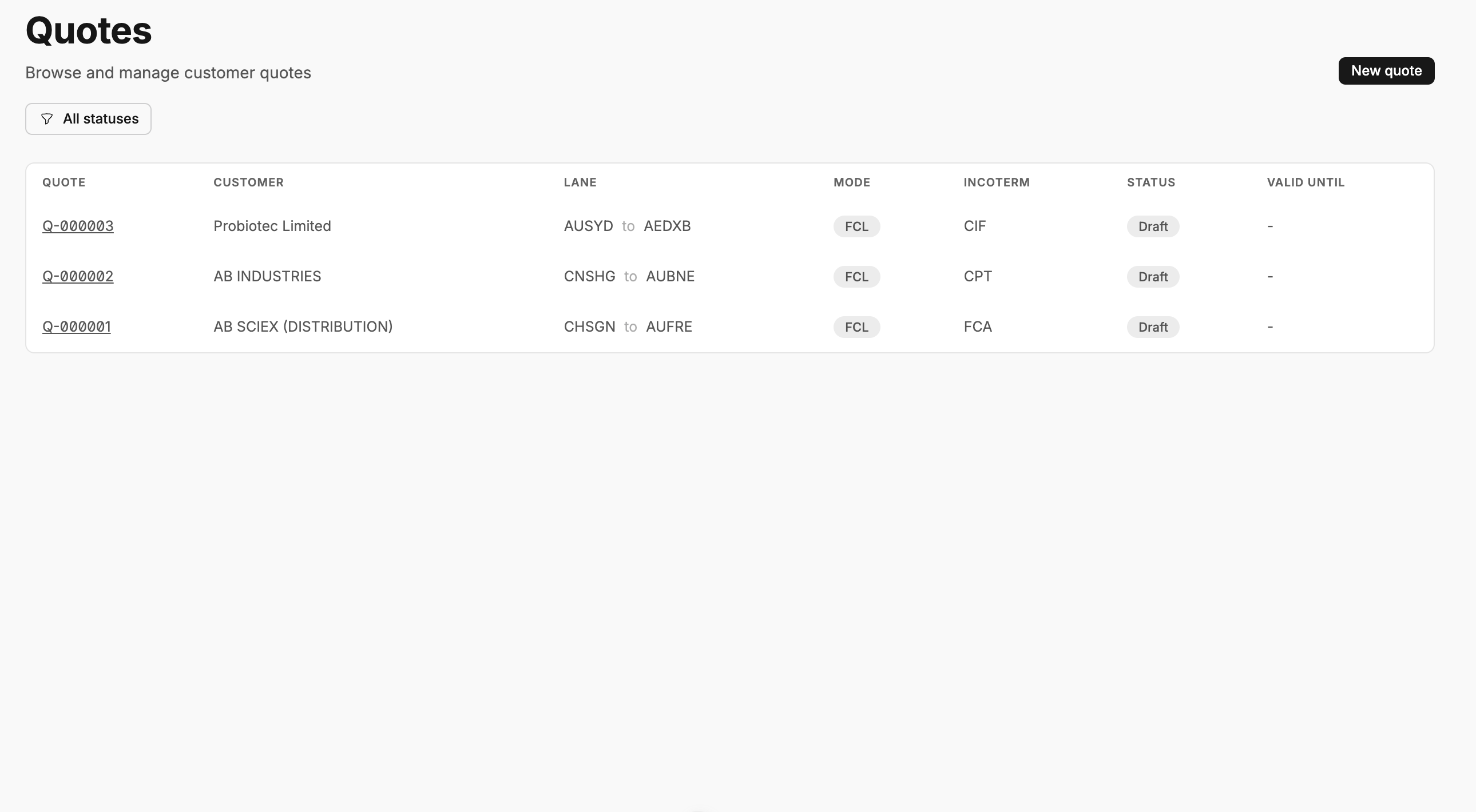
Start a quote
- On Quotes select New quote.
- Shipment. Pick the Customer and enter the contact. Choose the mode (Ocean - FCL, Ocean - LCL or Air), whether you act for the buyer or the seller, the Incoterm, Origin port and Destination port, pickup and delivery addresses, cargo-ready date and commodity. Add containers, or weight, volume and packages.
- Select Find rates. Nothing is created until you choose a rate.
- Rate options. Each published rate for the lane shows its validity and a sell preview. If no current rate exists, the most recent expired ones are offered with a warning to confirm pricing. Select Use this rate, or Start blank to build the quote by hand.
- Create. The quote is built from the rate and the customer's margin card and opens as a draft.
If a customer has no margin card assigned, rate cards show no sell preview. Assign one under Margins first, or start blank.
Edit the draft
Lines sit in five segments: Freight, Origin, Destination, Pickup and Delivery, each with a subtotal. On a draft you can change the buy, margin, sell and quantity on any line, add a line by item code, or remove one. Flags on a line tell you how it was priced: No rule matched, Floor applied (the card's minimum margin), Pre-extended or Conditional.
On the right, Totals shows buy, sell and margin. Quote details holds the validity dates, Customer notes (printed on the PDF), Internal notes (never printed), and two choices for the PDF: Show top-line total only and Include terms and conditions.
If someone else edits the same quote, you are asked to Keep my changes or reload theirs.
Issue the quote
Select Download PDF. The PDF shows the customer only sell prices, by segment with a total, your customer notes, and the terms if you included them. Send it to the customer from your own email; TaluxIQ does not send quotes itself.
Duplicate copies a quote into a new draft, which is how you revise one. Cancel quote ends a draft and cannot be undone. The list shows each quote's status (Draft, Sent, Accepted, Declined, Cancelled) and marks a quote Expired once its valid-until date has passed.